
Pipeline basics
See all your deals in one place and move them through your sales process.
Your pipeline shows every deal you are working on. It helps you see where each customer is in the buying process at a glance.
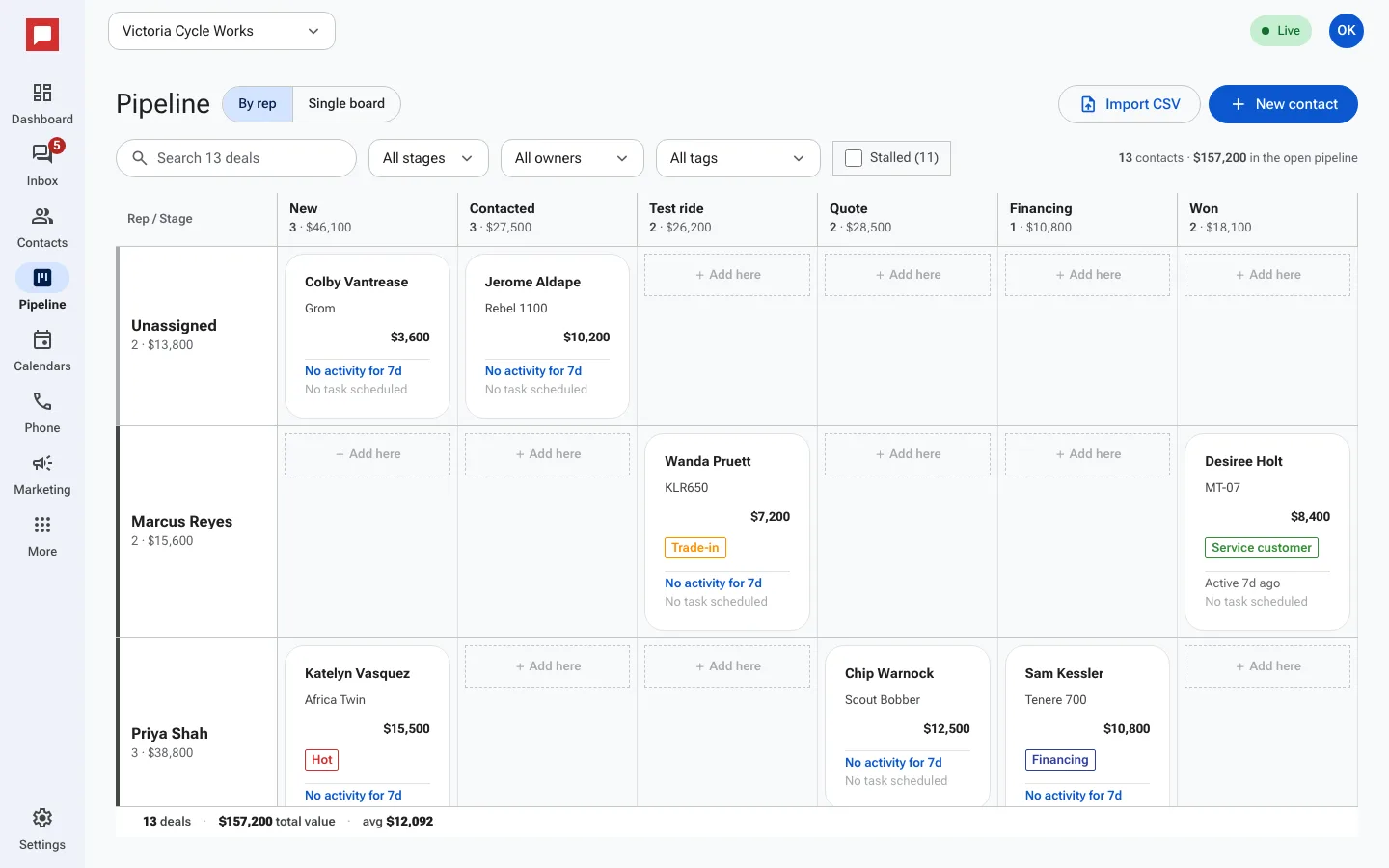
Steps
- Go to the left icon rail and click Pipeline.
- Look at the columns on the screen. Each column is a stage in your sales process.
- See the cards inside each column. Each card is a deal.
- Drag a card to a different column to move the deal to a new stage.
- Use All stages, All owners and All tags to narrow the board.
- Click By rep to view the board grouped by sales team members.
- Click Single board to see one row of stages.
- Type in the Search the board box to find a specific deal.
Good to know
- You can clear all active filters by clicking Clear filters.
- If no deals match your current filters, you will see the message No deals match these filters.
- The board updates instantly when you move a card.
- You can switch between views to suit how you like to track work.