
Set up pipelines and stages
Learn how to create, rename, and organize your sales pipelines and stages in HowdyBell.
Pipelines help you track deals as they move from start to finish. You can customize the stages to match how your business actually sells.
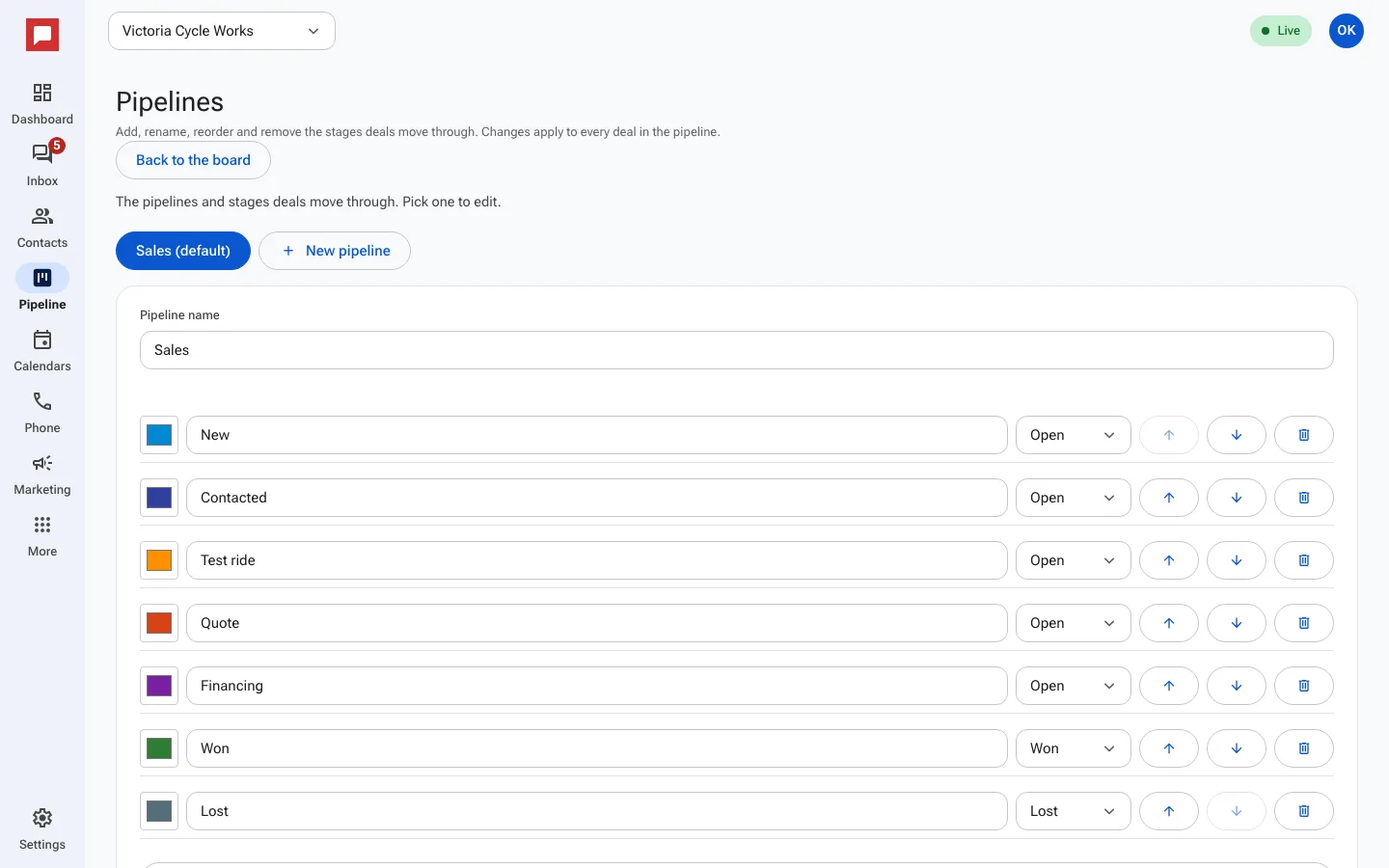
Steps
- Click Pipeline in the left icon rail.
- Click Manage pipelines at the top of the board. You need a role that can manage settings.
- Select the pipeline you want to edit from the list.
- Change the pipeline name if needed.
- Click Add stage for a new stage, type over a name to rename it, or click the color square to change its color.
- Set the kind for each stage to Open, Won, or Lost.
- Use the up and down arrows to change the order, or the trash button to remove a stage.
- Click Save changes to apply your updates.
Good to know
- If you remove a stage that still has deals, a panel asks where they should go. Pick a stage under Move those deals to (add a Lost reason if you pick a lost stage), then click Move deals and save.
- You can create a new pipeline by clicking New pipeline and then Create pipeline. It starts with New, Won, and Lost stages.
- Click Make default to make the pipeline you are editing the one the board opens first.
- You cannot delete a pipeline if it has deals or deal history.
- You cannot delete the default pipeline.