
Assign, snooze and close conversations
Manage your workload by assigning, snoozing, and closing conversations.
Keep your Inbox organized by giving conversations to the right person. You can also pause conversations you need to handle later.
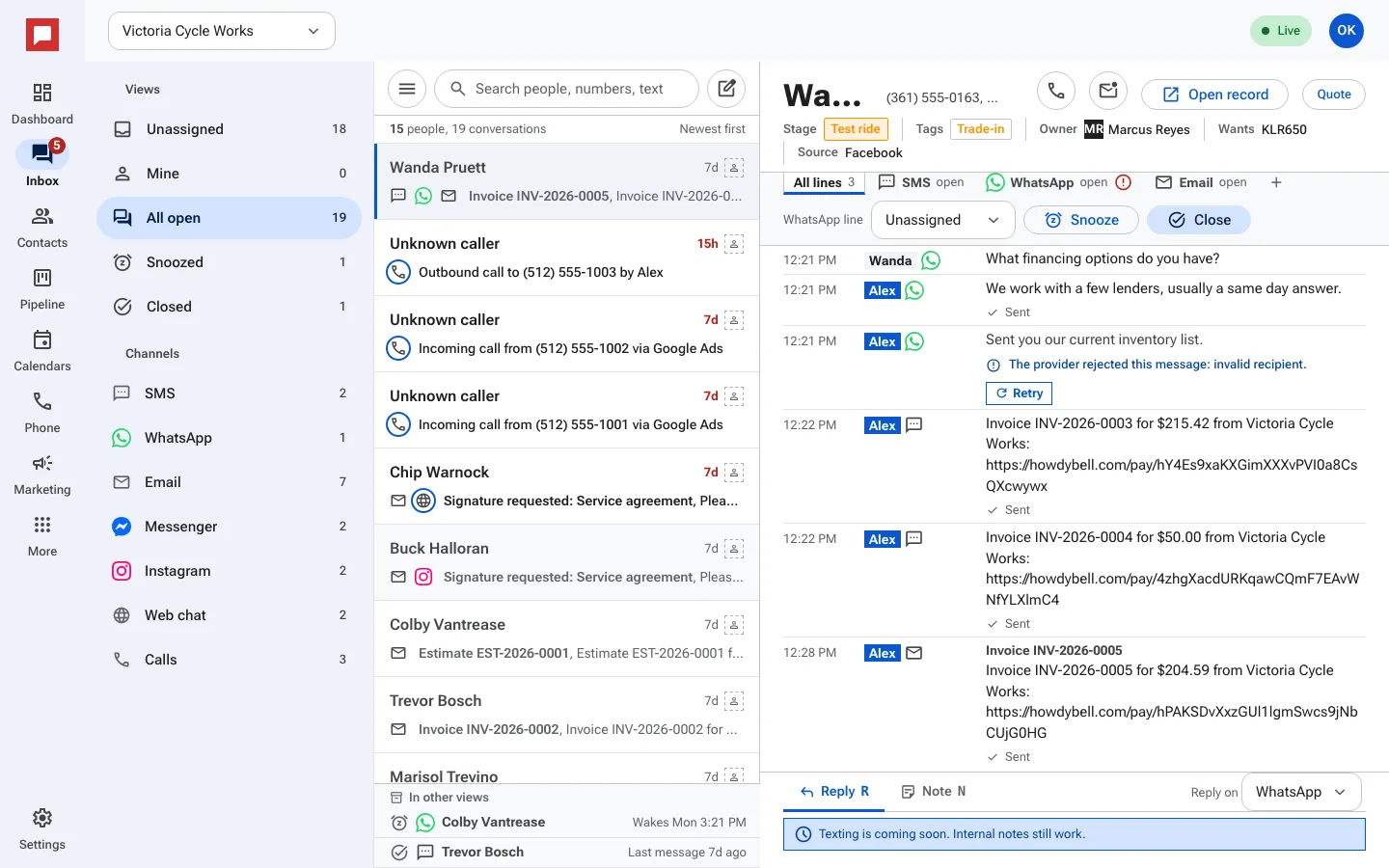
Steps
- Open a conversation in the Inbox.
- Click the Owner field in the conversation header.
- Select a teammate from the list to assign the conversation.
- Click the Snooze button to pause the conversation.
- Pick 1 hour, 3 hours, Tomorrow (9 AM) or Next Monday (9 AM).
- Or choose Custom and pick a date and time (in the location's time zone).
- Click Close to mark the conversation as finished.
- Click Reopen if you need to continue a closed conversation.
- Check the Snoozed view to see all paused conversations.
Good to know
- Assigned conversations appear in the Mine view for the assigned person.
- Snoozed conversations move out of your active list until the time is up.
- You can reopen a closed conversation at any time.
- Closing a conversation does not delete the history.