
Add the chat widget to your website
Put a chat bubble on your site so visitors can message your team.
The chat widget lets website visitors talk to your team directly. They see a small bubble on your site, and you answer from the Inbox.
Steps
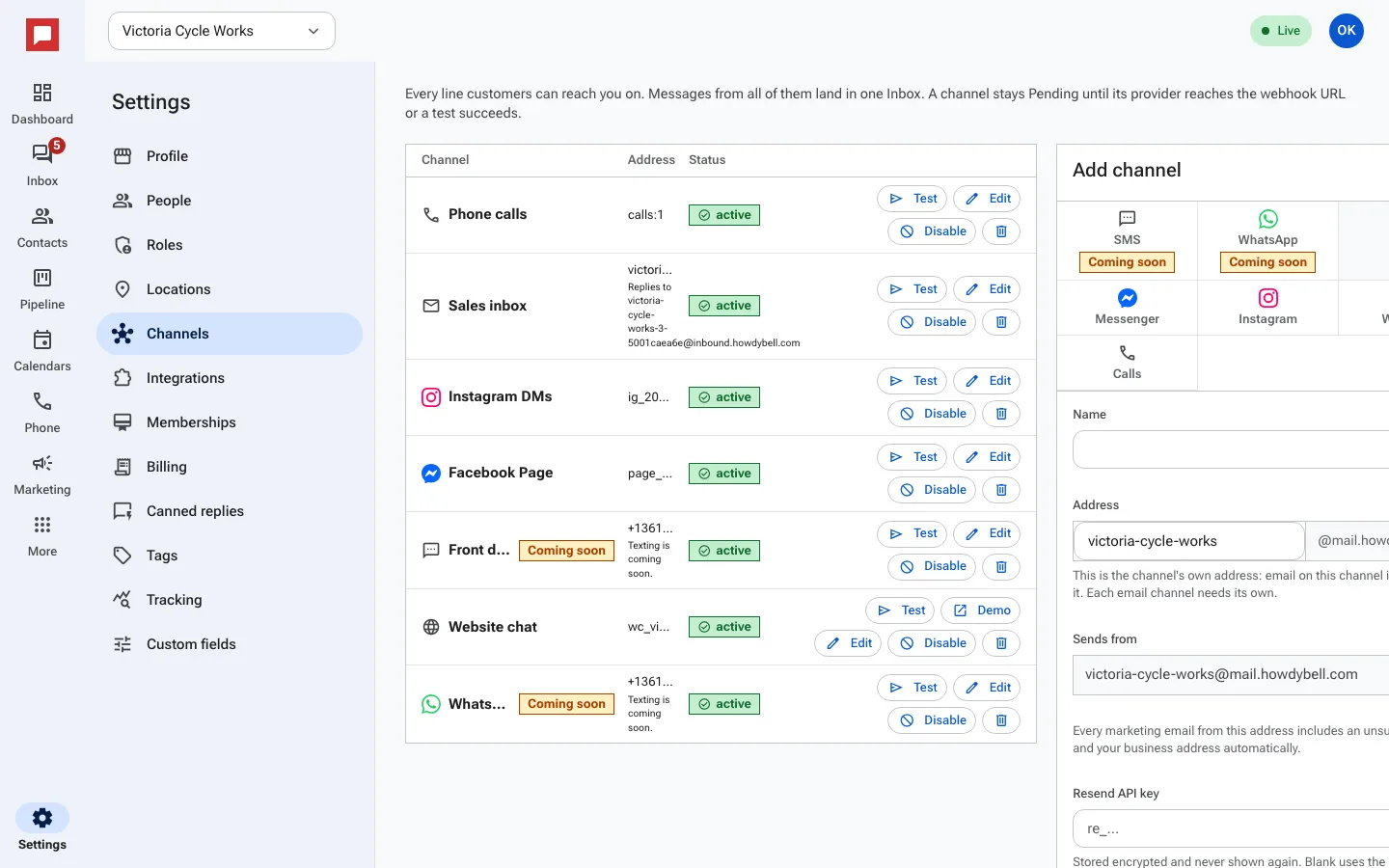
- Click Settings at the bottom of the left icon rail, then Channels.
- In the Add channel panel, choose web chat and give the channel a Name.
- Set the Greeting visitors see and an Accent color that matches your brand.
- Under Allowed origins, list your website address. Leave it blank to allow any site.
- Save. Then click Edit on the new channel and copy the Embed snippet.
- Paste the snippet into your website, just before the closing body tag.
- Click Demo to see the widget on a sample page, then send yourself a test message. It lands in your Inbox.
Good to know
- The widget works on any website, including mobile browsers.
- Chats show up in the Web chat view of the Inbox, next to texts and emails.