
Reply, add notes and use canned replies
Send replies, leave internal notes, and save time with canned replies.
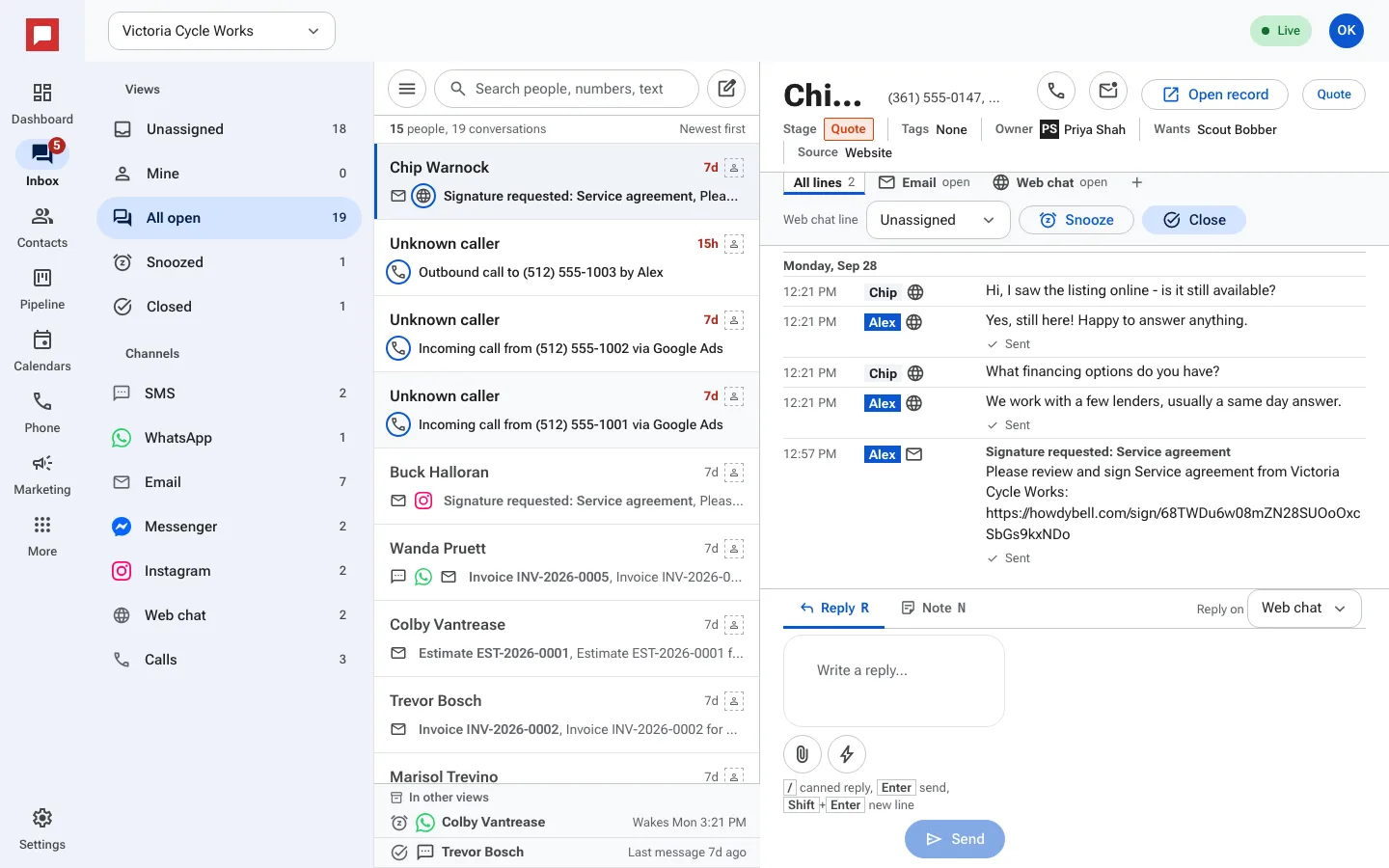
You can answer customers and keep your team in the loop from the same screen. Use the composer to send messages or add private notes.
Steps
- Open a conversation in the Inbox.
- In the composer at the bottom, make sure Reply is selected. Pick the channel to reply on (for example Web chat, SMS or Email) next to Reply on.
- Type your message in the text box.
- Press Enter to send the message.
- Press Shift and Enter to add a new line without sending.
- Click the Note button to switch to internal note mode.
- Type your note. Only your team can see this.
- Type a forward slash / to open the canned replies list.
- Select a canned reply to insert it into your message.
Good to know
- Internal notes are visible only to your team. The customer never sees them.
- Canned replies are shared shortcuts your team can use to save time.
- Use Attach a file to send a photo or document.