
Create an API key or webhook
Give your own software access to HowdyBell with an API key, and get a POST on your server when things change.
API keys let your developer, or a tool you use, read and write your HowdyBell data. Webhooks do the opposite: HowdyBell tells your server the moment something happens, like a new contact or a paid invoice.
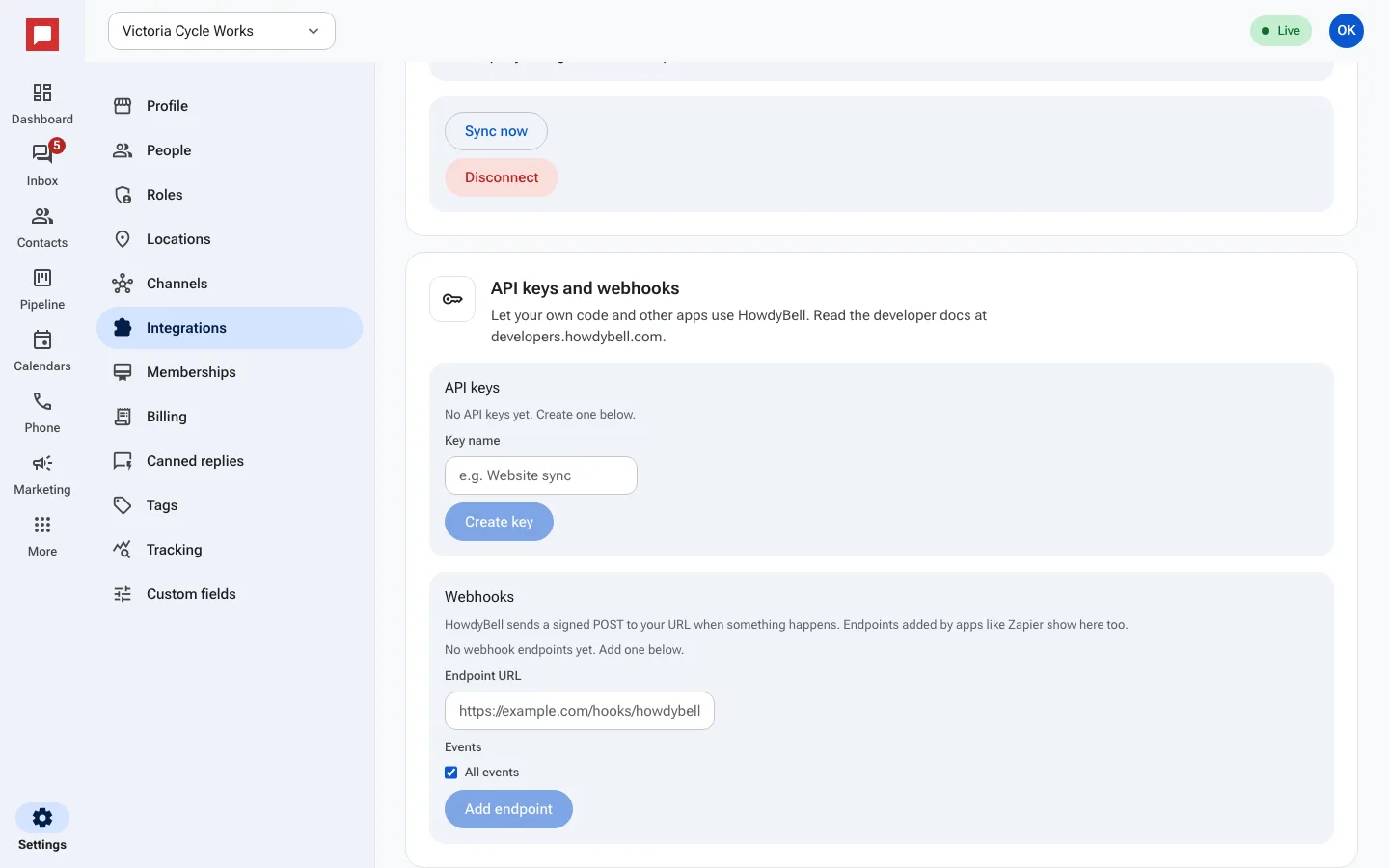
Create an API key
- Click Settings at the bottom of the left icon rail, then Integrations.
- In the API keys and webhooks card, type a Key name, for example "Website sync".
- Click Create key.
- Click Copy and store the key somewhere safe, like a password manager. Then click Done.
The key is shown only once. If you lose it, revoke it and make a new one.
Revoke a key
Click Revoke next to the key, then Revoke key. Anything using that key stops working right away.
Add a webhook
- In the same card, under Webhooks, enter the Endpoint URL your developer gave you. It must start with https.
- Keep All events ticked, or untick it and choose the events you want.
- Click Add endpoint, then copy the signing secret that appears and give it to your developer.
- Click Send test to send a test event to the URL.
Use the On and Off switch to pause an endpoint, or Delete to remove it.
Good to know
- A key works for your whole workspace. Treat it like a password.
- Only owners and managers can see this card.
- Webhooks that apps like Zapier set up for themselves show in the same list.
- Your developer will find everything they need at developers.howdybell.com.