
Install an app from the marketplace
Learn how to browse the marketplace, view app details, and install new tools for your business.
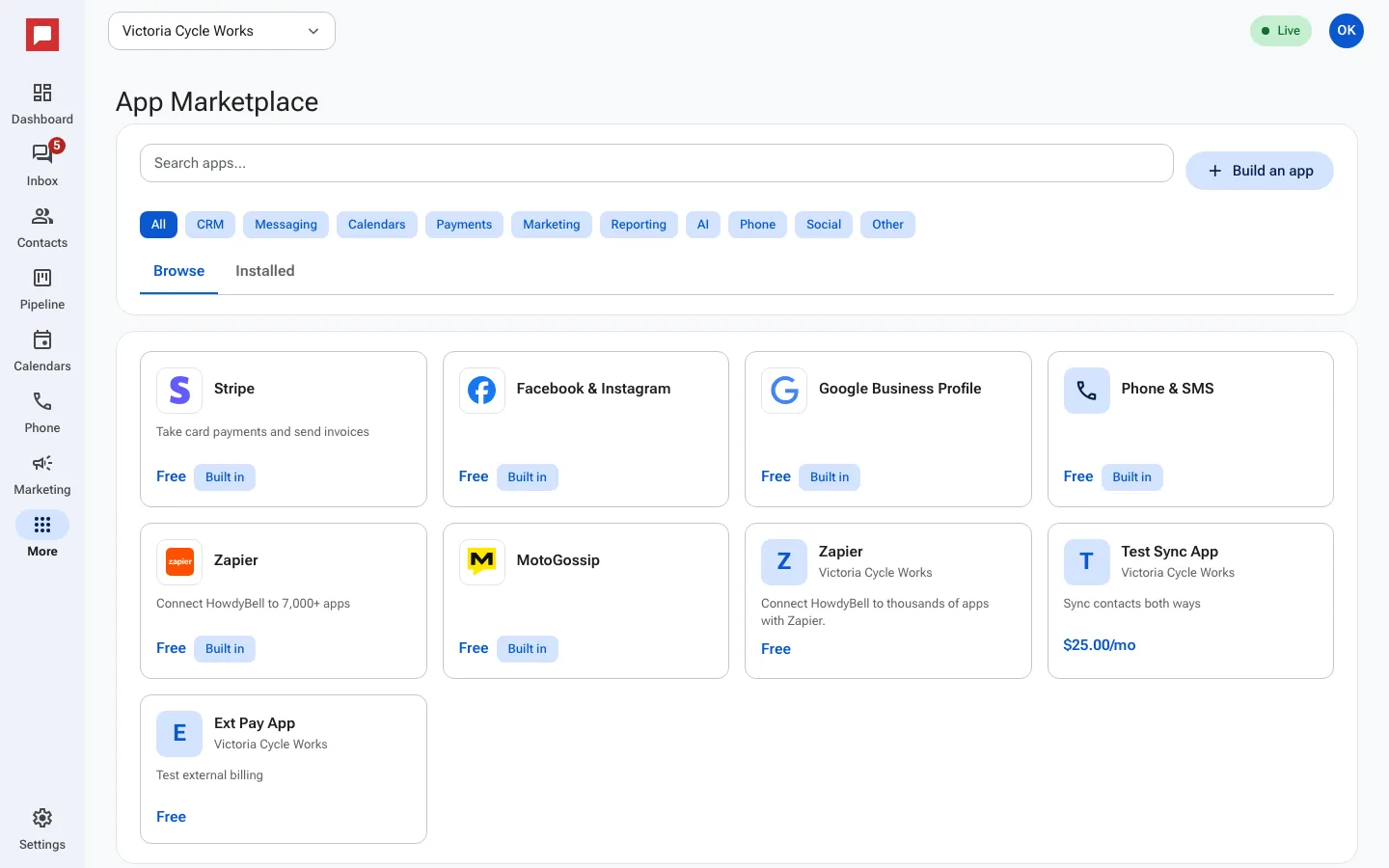
The App Marketplace adds tools to HowdyBell, from built-in connections like Stripe and Zapier to apps made by other developers.
Steps
- Click More in the left icon rail, then Marketplace.
- Search with Search apps... or pick a category, like Payments or Messaging.
- Click an app to open its page. Read About and the list under This app will be able to:.
- Click Install app.
- On the access screen, choose the Location the app may use and click Allow.
- HowdyBell sends you back to the app to finish its own setup.
Good to know
- The price shows on each card. Free apps cost nothing; paid apps need a payment card on file first.
- Some apps show Paid, billed by the developer: you pay on the developer's own page during install.
- An app only gets the access listed on its page, and only for the location you picked.
- Built-in apps marked Built in are part of HowdyBell and are set up in Settings.