
Manage or remove installed apps
View your active apps, check their status, and remove access when you no longer need them.
See every app you installed and remove the ones you no longer use.
Steps
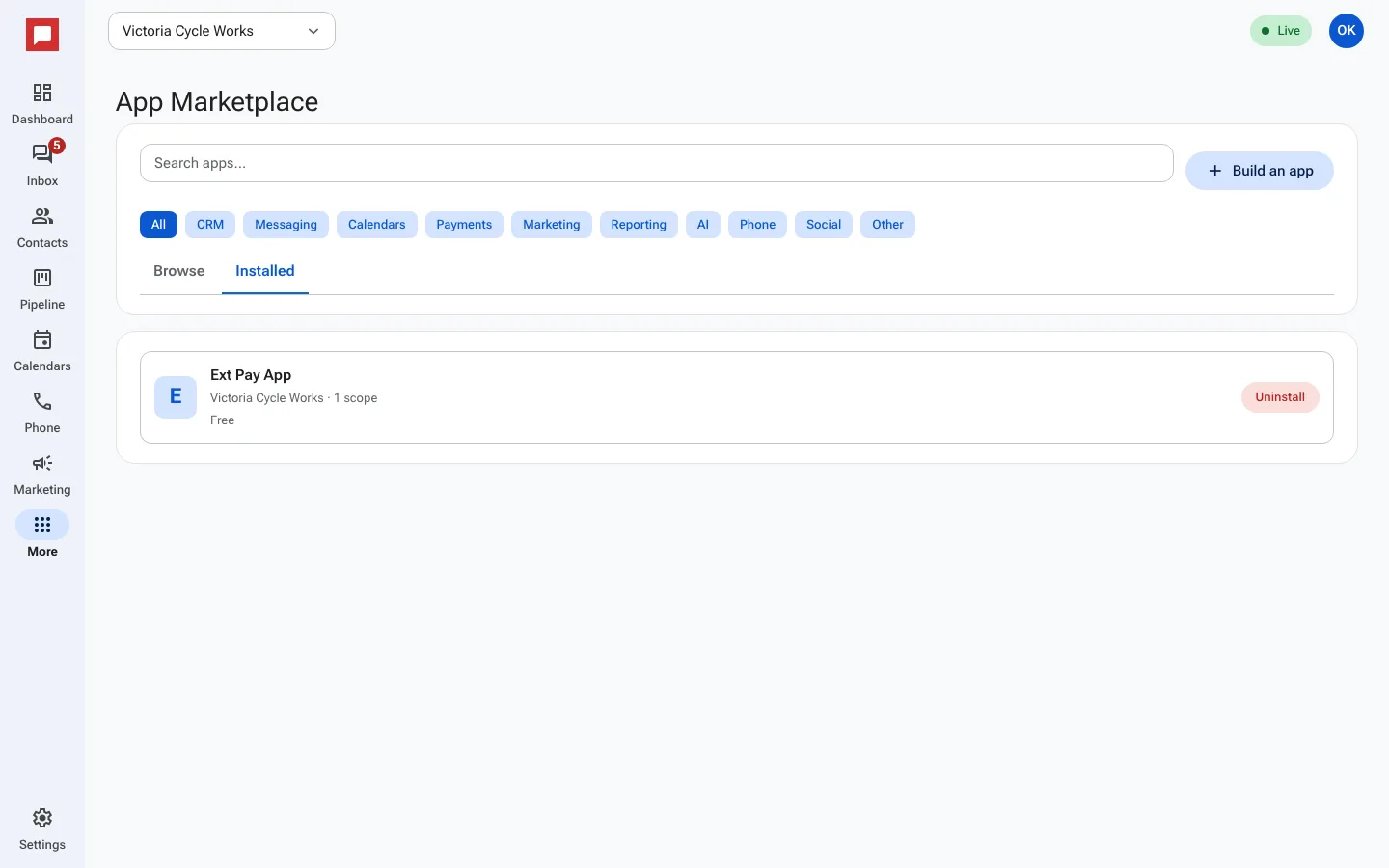
- Click More in the left icon rail, then Marketplace.
- Open the Installed tab.
- Each card shows the app, the location it is connected to and its price.
- To remove an app, click Uninstall, then Yes, uninstall.
Good to know
- Uninstalling cuts the app off right away. Its access tokens stop working.
- You can install the app again later from the Browse tab.