
Use the content calendar
View all your planned posts in a calendar and drag them to new dates.
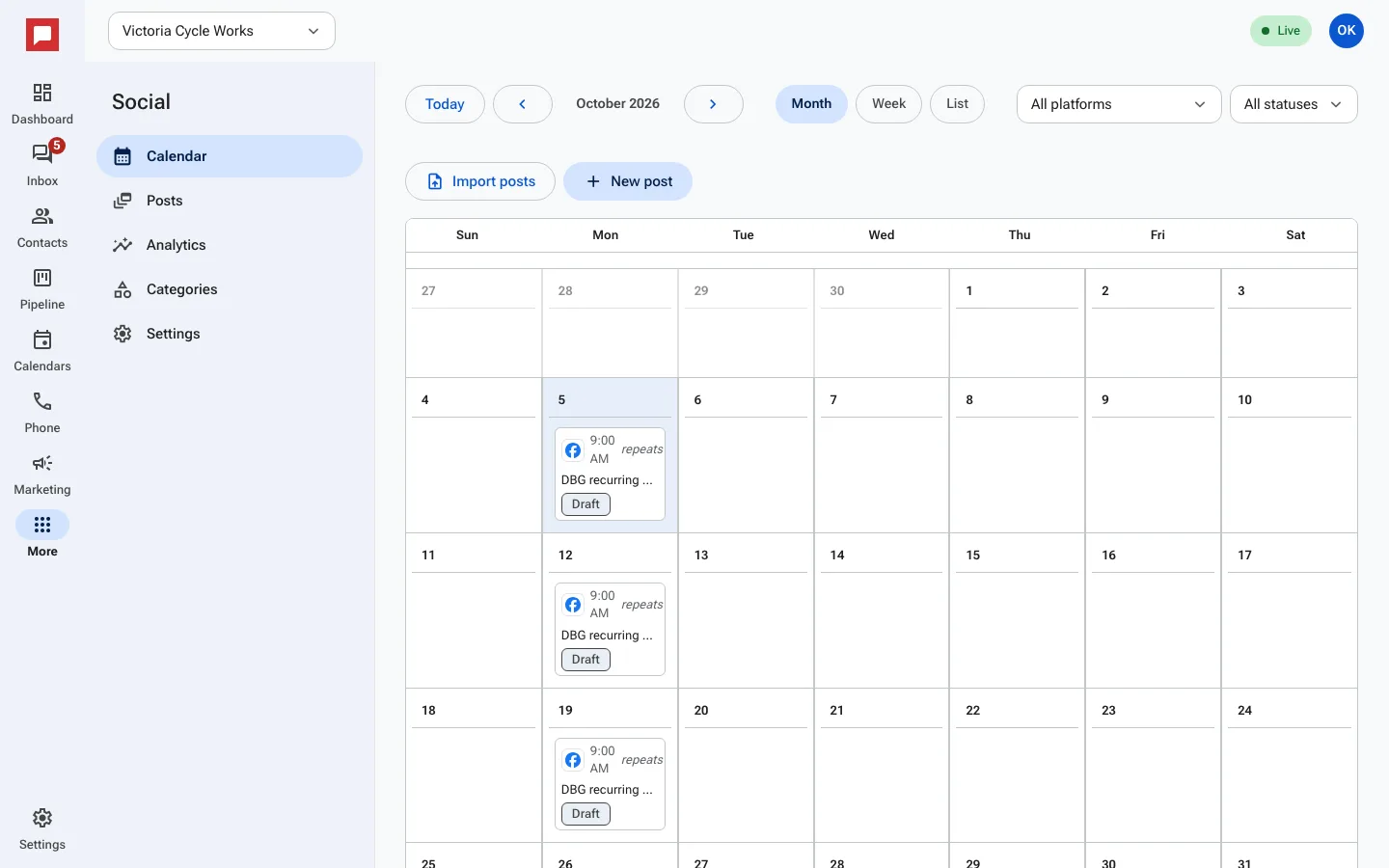
The calendar shows you everything you have planned at a glance. You can see which posts are drafts, approved, or published. You can also move posts to different days easily.
Steps
- Go to More in the left icon rail, then Social.
- The Calendar tab is open by default.
- Use the Month, Week, or List buttons to change the view.
- Click on a date to see the posts scheduled for that day.
- Drag a post to a different date to reschedule it.
- Click New post to add a new item to the calendar.
- Click Import posts to upload many posts at once from a CSV file (up to 2 MB).
Good to know
- You can filter posts by platform or status using the dropdowns at the top.
- You can approve or cancel posts directly from the calendar view.