
Create and schedule a post
Write a post, add media, pick your accounts, and set a time to publish.
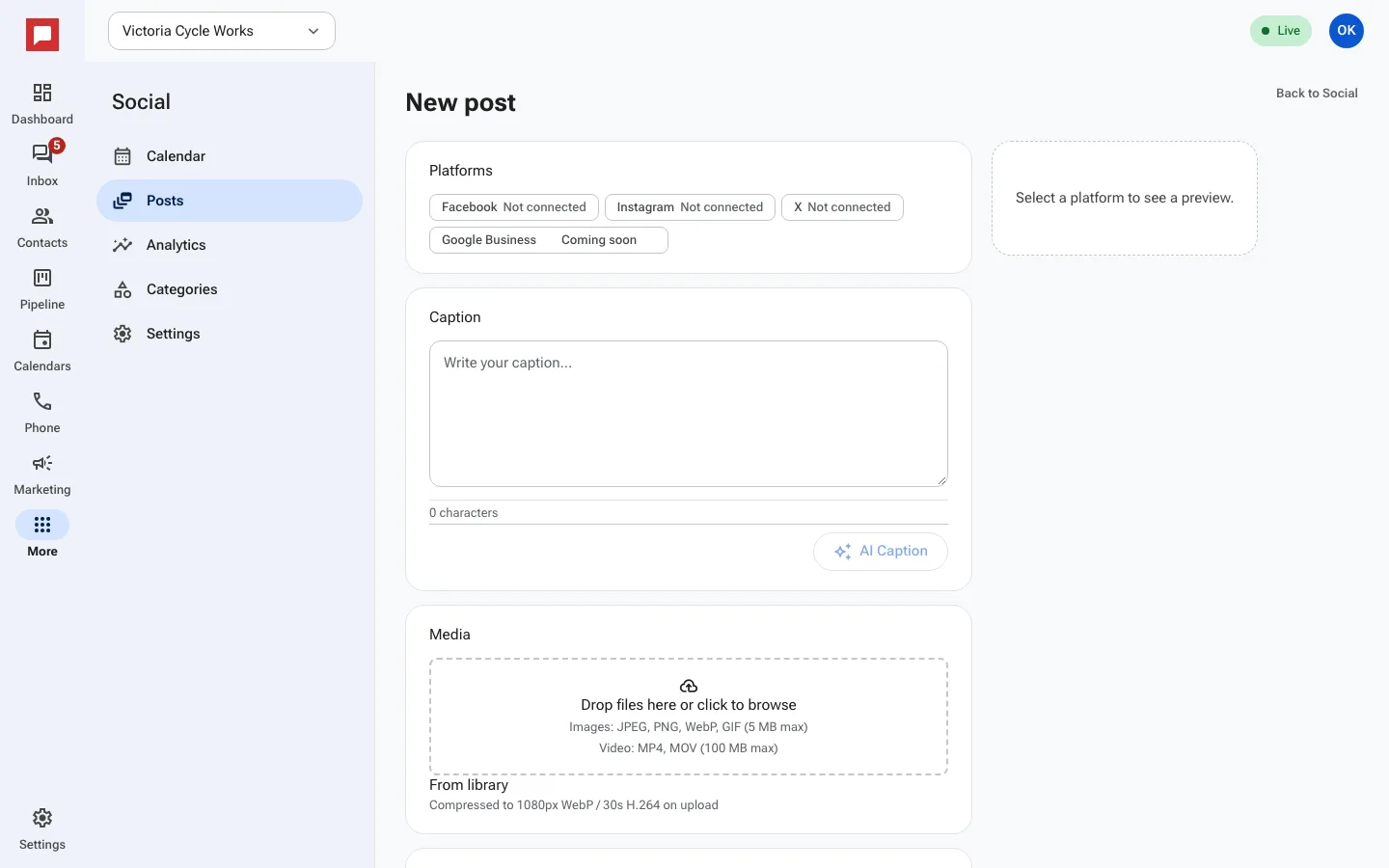
This is where you write your social content. You can add images, videos, and links. You can also use AI to help write your caption.
Steps
- Go to More in the left icon rail, then Social.
- Click New post on the calendar screen.
- Select the platforms you want to post to, like Facebook or Instagram.
- Type your caption in the text box. You can click AI Captions for suggestions.
- Add media by clicking From library or dropping files into the upload area.
- Set the Date and Time for when you want the post to go out.
- Click Schedule to save the post as a draft.
- Go to the Posts tab and click Approve when you are ready to publish.
Good to know
- Images: JPEG, PNG, WebP or GIF up to 5 MB. Video: MP4 or MOV up to 100 MB.
- Every post needs a human to click Approve before it publishes.
- Tick Add UTM tags to links to see in your reports which clicks came from social.
- Use Recurrence to repeat a post. A repeating series can be approved at once with Approve whole series.