
Connect Google Calendar or Zoom
Sync busy times and add video links to your appointments.
Connecting your calendar keeps your busy times in sync. You can also add video links so customers can join meetings online. This saves you from double booking and makes remote meetings easy.
Steps
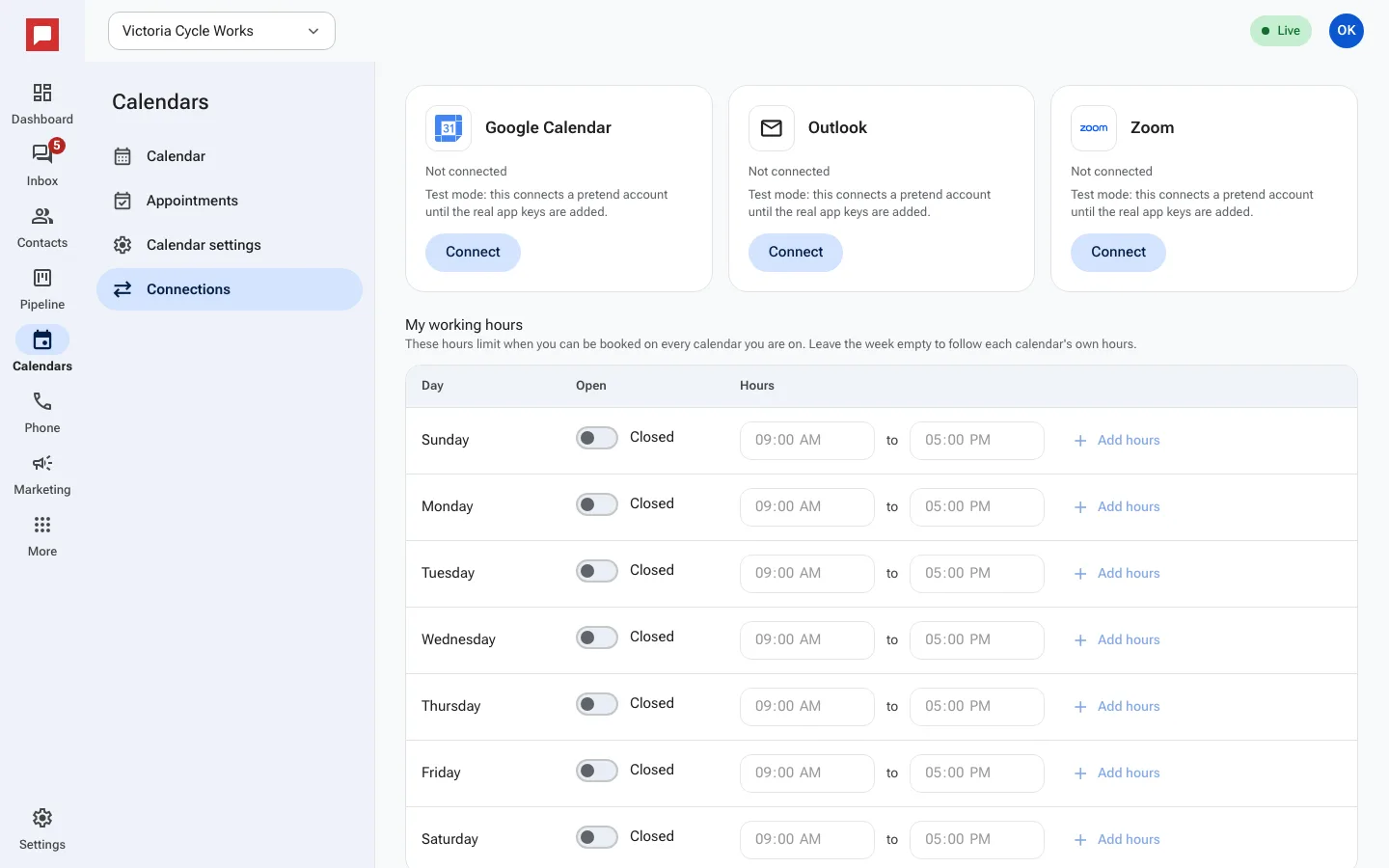
- Click Calendars in the left icon rail, then Connections.
- Click Connect on Google Calendar, Outlook or Zoom and sign in to that account.
- Busy times from a connected calendar block those slots in HowdyBell, and new appointments are added to it.
- With Zoom connected, choose Zoom as the Meeting location kind on a calendar's Details tab so each booking gets a video link.
- Below the connections, set My working hours: the hours you can be booked on every calendar you are on.
Good to know
- Google Calendar sync shows your busy times in HowdyBell.
- Zoom adds a video link to each appointment.
- You can connect a calendar and Zoom at the same time.
- If a card says Test mode, that connection is not live yet.
- Sync runs automatically in the background.