
Manage appointments
View, reschedule, cancel, and track appointment statuses.
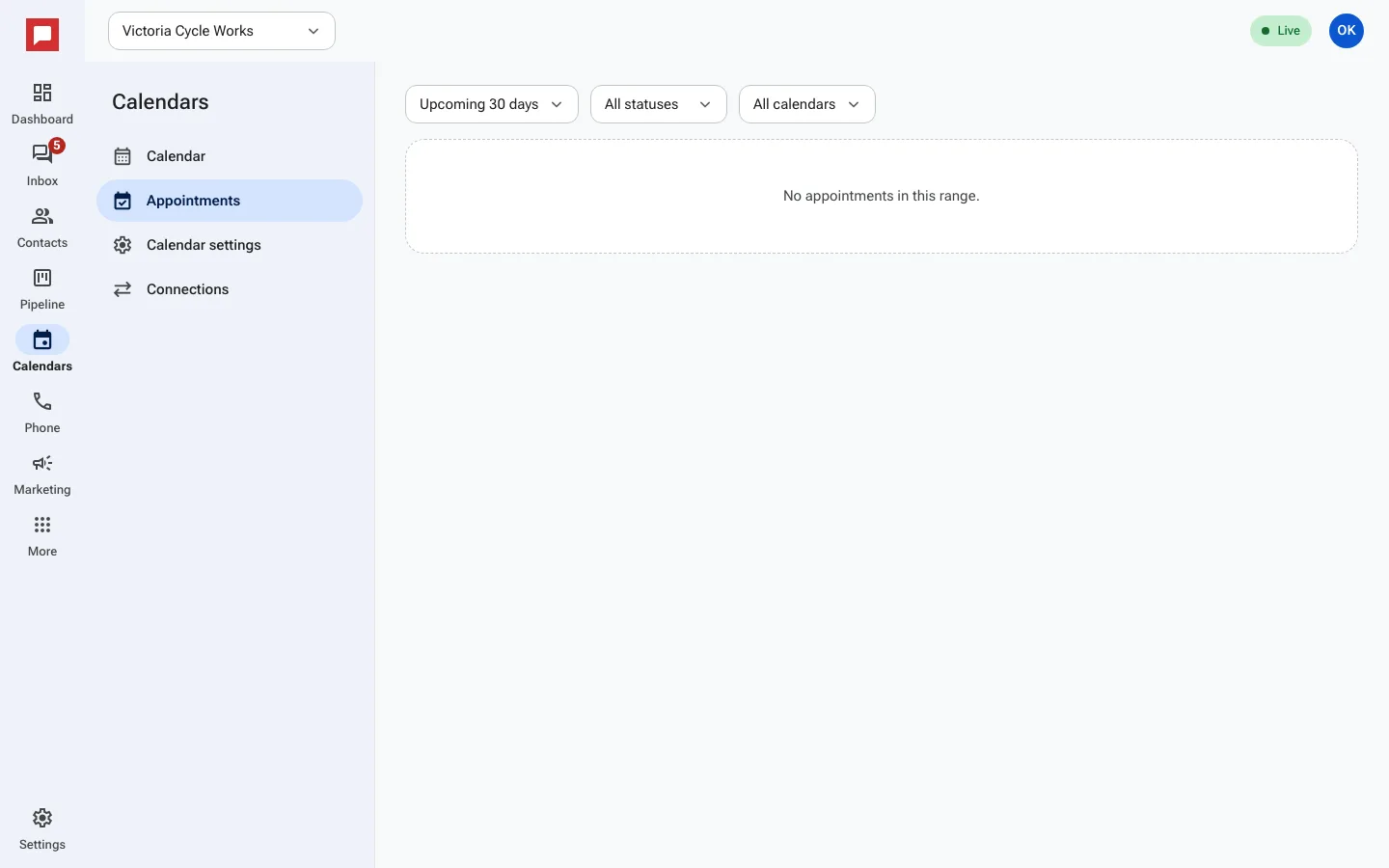
Your appointments list shows all bookings. You can see who is coming, when, and what status they are in. This helps you stay organized and follow up.
Steps
- Click Calendars in the left icon rail, then Appointments.
- Narrow the list with Upcoming 30 days or Past 30 days, All calendars and All team members.
- Click an appointment to open Appointment details: when, who it is Assigned to, where, and the Source.
- Set the Status: Confirmed, Showed, No show, Cancelled or Invalid.
- Click Open contact to see the customer, or Open meeting for a video call.
- To book someone yourself, click New appointment, pick the calendar, date, time and service.
Good to know
- Cancelling frees the time for others to book.
- When booking by hand you can tick Book even if the time is outside open hours or taken.
- Status changes can trigger reminders or follow-ups.