
Set your availability
Define working hours, buffers, and date overrides for your calendar.
Availability controls when people can book you. You set your regular working hours and any special dates. This prevents double bookings and respects your time.
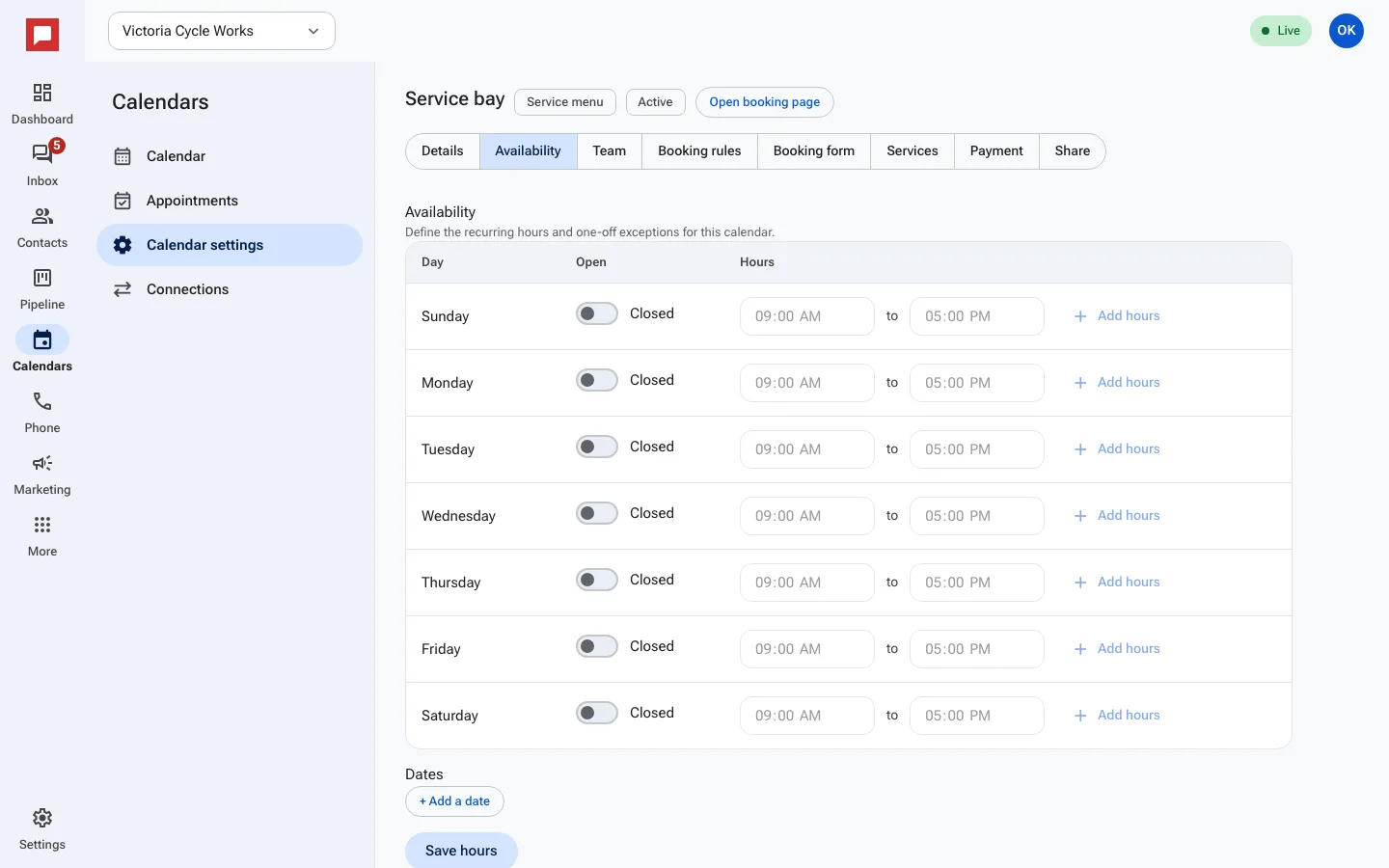
Steps
- Click Calendars in the left icon rail, then Calendar settings.
- Click the calendar you want to change, then open the Availability tab.
- Switch each day you take bookings to Open and set its Hours. Use Add hours for a split day, like a lunch break.
- Under Dates, click Add a date for holidays and one-off changes. Mark it Closed all day or give it special hours.
- Click Save hours.
- For breaks around meetings, open the Booking rules tab and set Buffer before (minutes), Buffer after (minutes), Minimum notice (minutes), Booking window (days) and Max bookings per day.
Good to know
- Buffers help you prepare for the next meeting.
- Minimum notice stops last-minute bookings.
- Booking window limits how far ahead people can schedule.
- Date overrides take priority over regular hours.