
Ask customers for reviews
Send review requests by text or email and set up automatic sends after a sale.
Review requests help you get more feedback from happy customers. You can send them manually or let the app handle it automatically.
Steps
- Click Contacts in the left icon rail.
- Open the contact you want to ask.
- Click Review at the top of the record.
- Choose Email or Text message as the channel.
- Click Send.
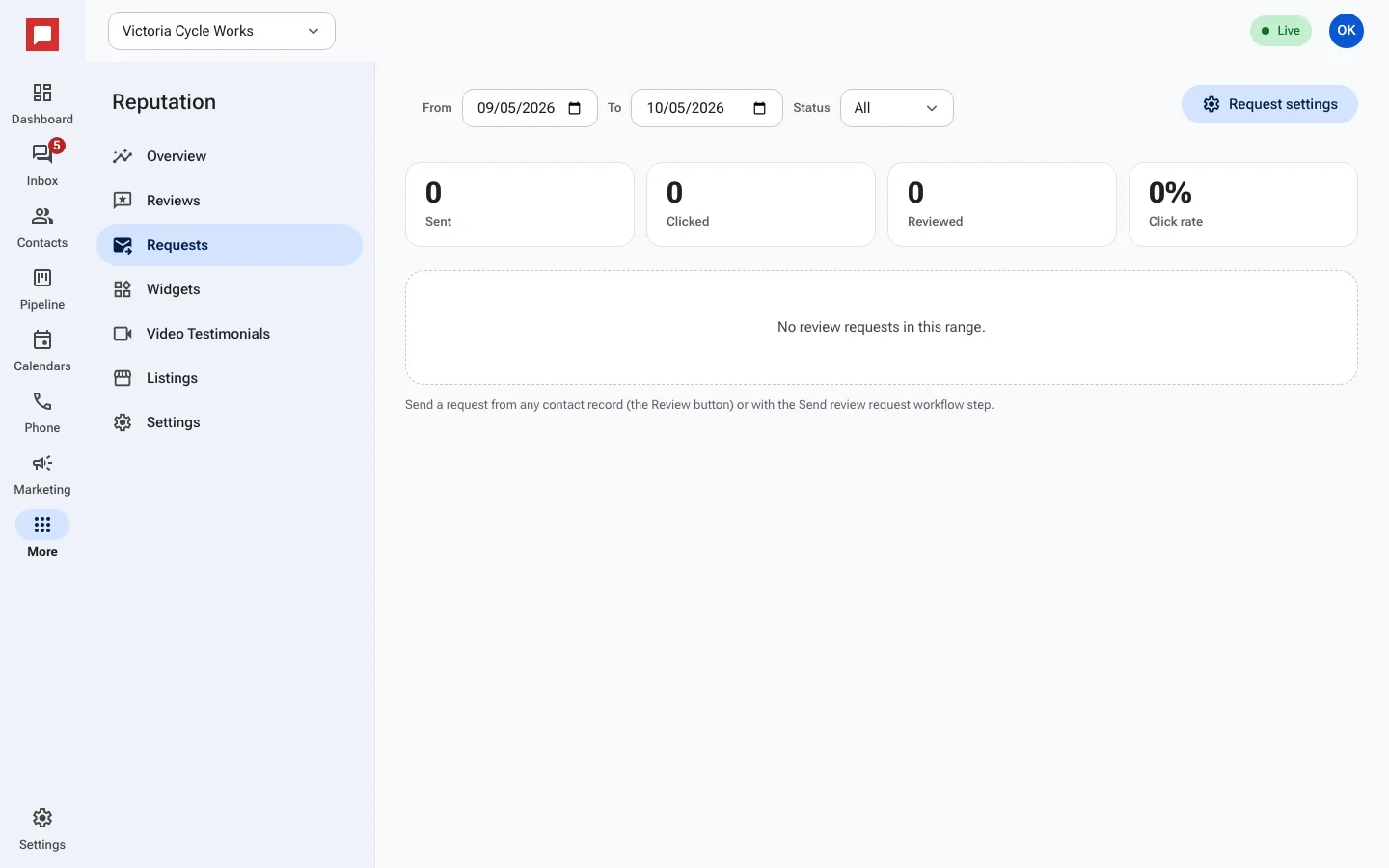
- To send requests automatically, click More, then Reputation.
- Select the Requests tab.
- Open Request settings.
- Turn on Send automatically.
- Under Pick a trigger, choose Auto-send after a win (a deal marked won).
- Save your changes.
Good to know
- Turn on Resend if no answer and set Max resends to follow up once or twice.
- The app tracks how many requests were sent, clicked, and resulted in a review.
- You can customize the text and email templates in the settings.
- Automatic requests only send when the specific trigger event happens.