
QR codes and trigger links
Create QR codes and tracked links that start workflows and track scans and clicks.
QR codes and trigger links help you track interactions and start workflows. You can use them in emails, texts, or on printed materials.
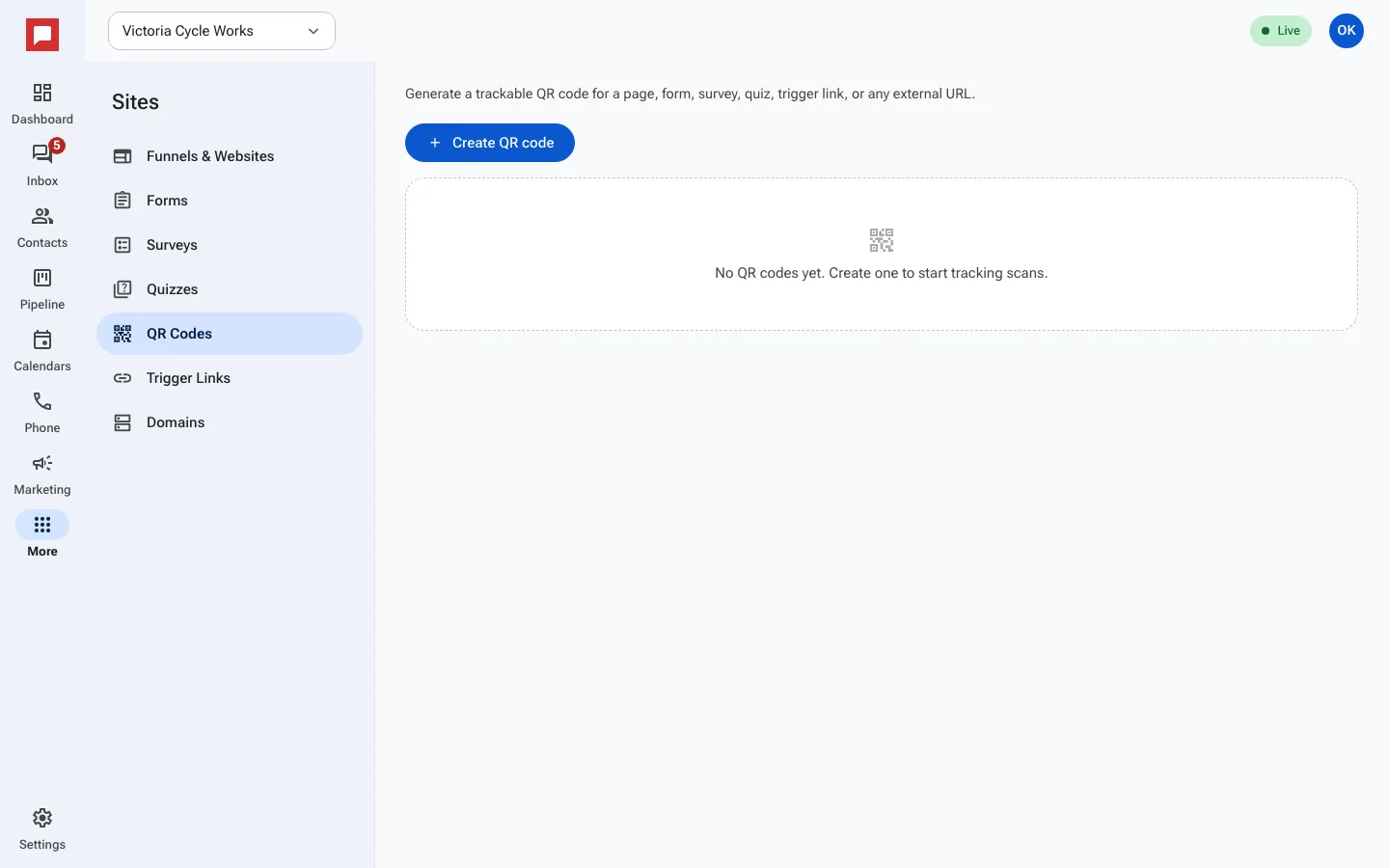
Steps
- Click More in the left icon rail, then Sites.
- Select the QR Codes or Trigger Links tab.
- Click Create QR code or Create trigger link.
- Choose a Target such as a site, form, survey, or quiz.
- For QR codes, choose a Foreground color and Size.
- For trigger links, enter a Destination URL.
- Click Save.
- Download the QR code image or copy the short link.
Good to know
- QR codes track the number of scans.
- Trigger links track clicks and unique contacts.
- You can use trigger links in email or text templates.