
Change many contacts at once
Update multiple contacts with a single action.
Bulk actions let you make changes to many contacts at the same time. This is faster than editing each person one by one.
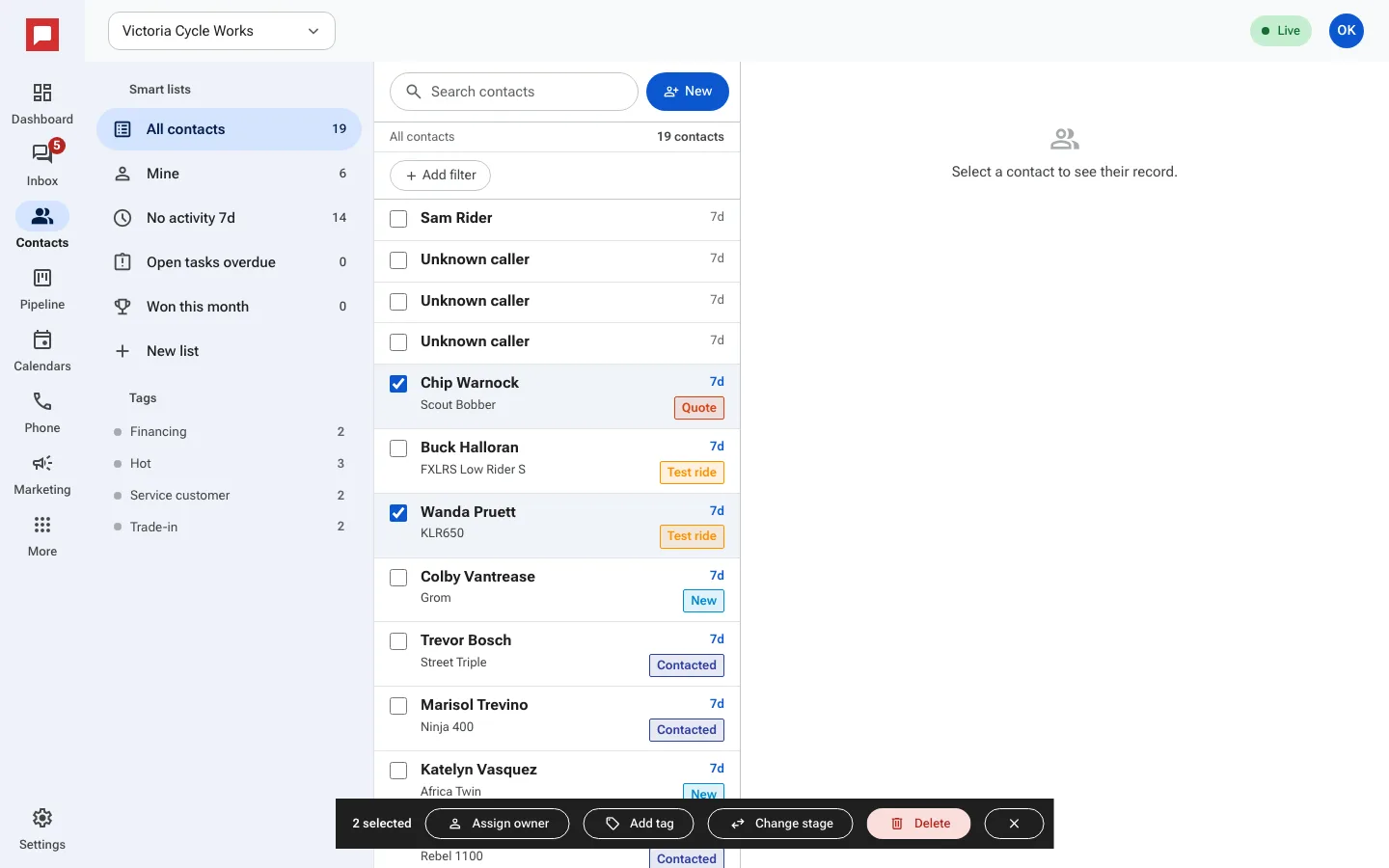
Steps
- Go to the Contacts page.
- Tick the box next to each contact you want to change. A bar appears at the bottom showing how many are selected.
- Click Assign owner to give these contacts to a specific team member.
- Click Add tag to apply a tag to all selected contacts.
- Click Change stage to move them to a different pipeline stage.
- Click Delete to remove selected contacts from your system.
- Confirm when asked. Click the X on the bar to clear the selection.
Good to know
- Bulk actions apply to every selected contact.
- Deleting asks you to confirm first. Deleted contacts disappear from lists, deals and tasks.