
Import contacts from a CSV file
Upload a CSV file to add many contacts at once.
Importing contacts saves you time when you have a large list of people. You can bring in data from spreadsheets or other tools.
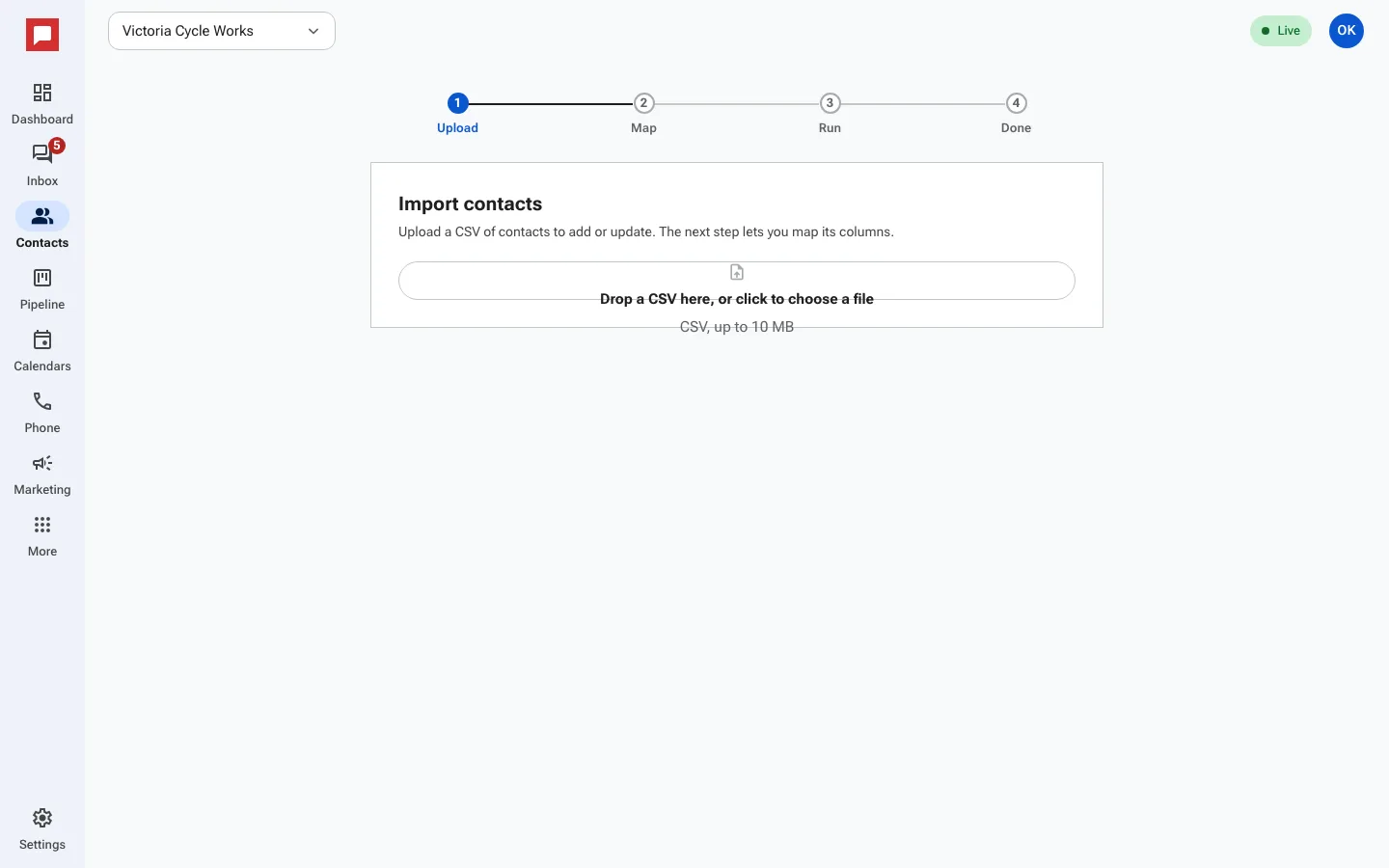
Steps
- Go to the Contacts page.
- Click Import CSV.
- Upload your file. The file must be a CSV and no larger than 10 MB.
- Map your columns. Match your file headers to HowdyBell fields like First name, Last name, and Email.
- Choose how to handle duplicates. You can map email or phone so HowdyBell can tell which rows are already contacts here.
- Click Run to start the import.
- Review the results. You will see how many were Updated and how many were Skipped.
- Click View imported to see the new contacts.
Good to know
- Duplicates are matched by email or phone number.
- You can import another file at any time.
- If the import fails, you can try again.