
Find your way around HowdyBell
Learn where to find tools, settings, and your account in the app.
HowdyBell puts your main tools on the left side of the screen. This helps you find what you need quickly.
Steps
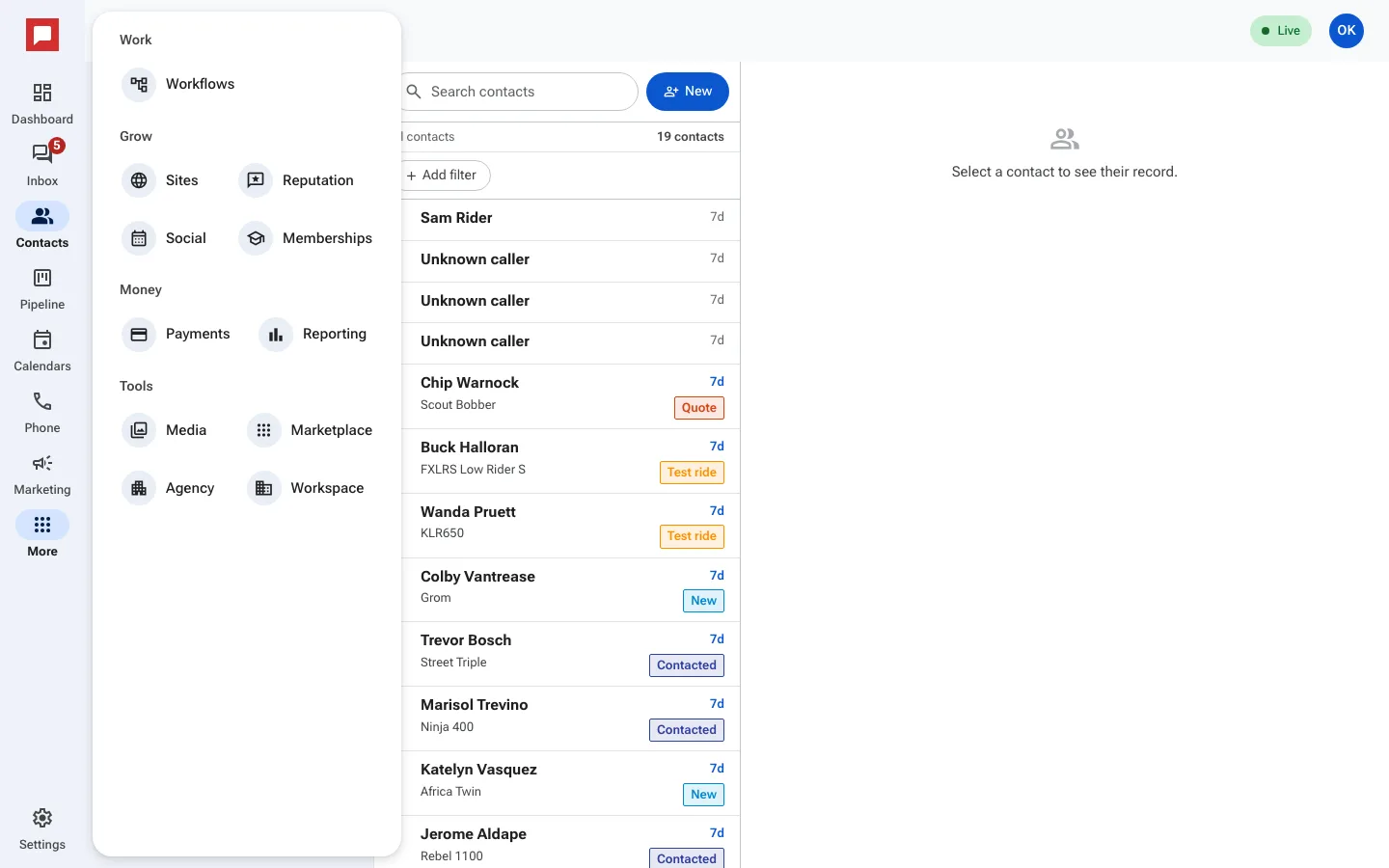
- Look at the left icon rail. You will see icons for Dashboard, Inbox, Contacts, Pipeline, Calendars, Phone and Marketing (you only see the tools your role allows).
- Click an icon to open that tool.
- Click More to see every other tool in the app.
- The More panel groups tools into Work, Grow, Money, and Tools.
- Click Settings at the bottom of the rail to change your account details.
- Click your round avatar at the top right to open the account menu.
- Use the location switcher near the top to change which business location you are working on.
On a phone, the left rail becomes a bar at the bottom of the screen. The icons are the same.
Good to know
- The More panel holds tools like Workflows, Sites, Reputation, Social, Payments, Reporting, Media and Marketplace.
- You can only see tools that your role allows you to use.
- The location switcher changes the data you see for that specific location.
- Your account menu lets you sign out or change your appearance.