
Invite your team
Add coworkers to your workspace and give them the right access.
Invite your team to work in the same workspace. Each person gets their own login and can see the tools their role allows.
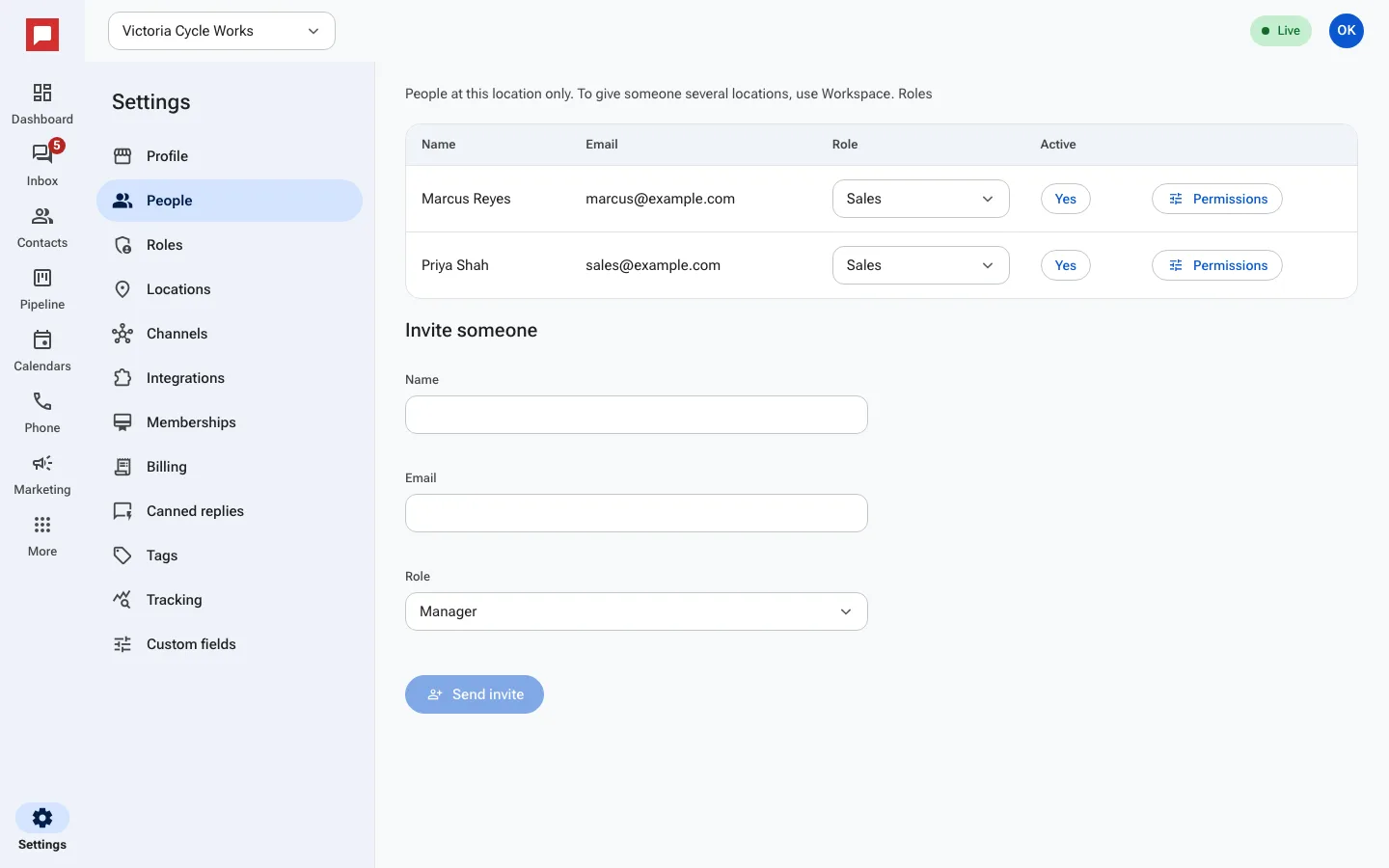
Steps
- Click Settings at the bottom of the left icon rail.
- Click People.
- Under Invite someone, type the person's Name and Email.
- Pick a Role. The role decides which tools and records they can see.
- Click Send invite.
- You see "Invited. They will get a sign-in link by email." They sign in from that email, no password needed.
To change what a teammate can do later, pick a different role in the Role column, or click Permissions next to their name.
Good to know
- You can only invite people if your role allows it.
- Each person signs in with their own email address.
- You can change a person's role later if their job changes.
- The People page shows the team at this location. To give someone access to several locations, use Workspace and Roles.