
Your member portal
Customize your portal address, branding, and how members log in.
Your member portal is the space where your audience logs in to view courses and communities. You can brand it with your logo and colors. Members use a unique link to access their content.
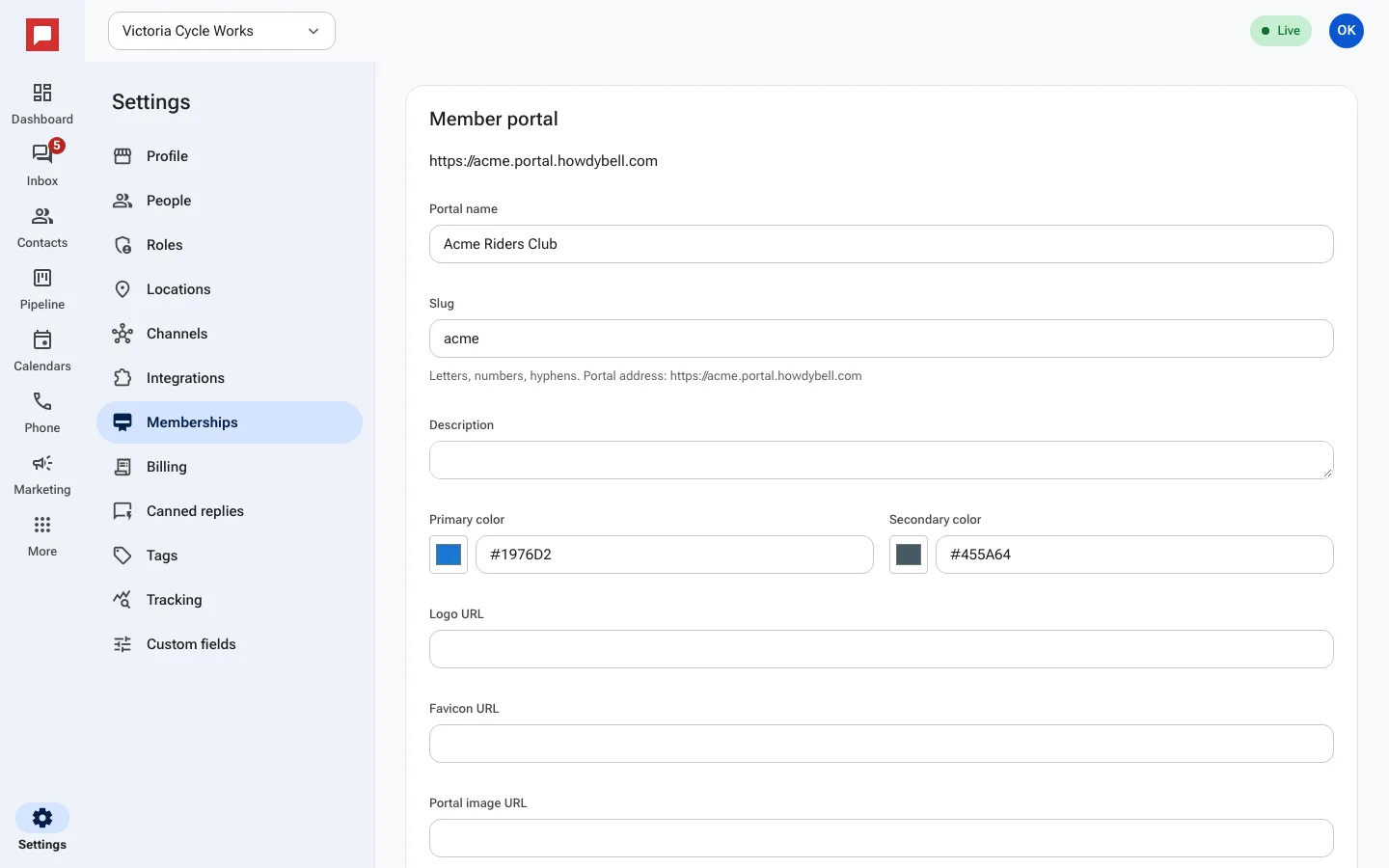
Steps
- Go to Settings at the bottom of the left icon rail.
- Select Memberships from the settings menu.
- Find the portal address section.
- Enter a Slug for your portal address (letters, numbers and hyphens).
- Add your Logo URL and pick a Primary color and Secondary color.
- Add a Favicon URL and a Portal image URL for the sign in page.
- Fill in the Portal name and Description members see.
- Save your changes to update the portal appearance.
Good to know
- Members sign in with their email and a password, or with a one-time sign-in code sent to their email.
- Your portal lives at an address like yourname.portal.howdybell.com, using the slug you pick.
- Branding changes apply immediately to all members.
- The portal address is used for all course and community links.