
Upload course videos
Upload and manage your course videos in a central library.
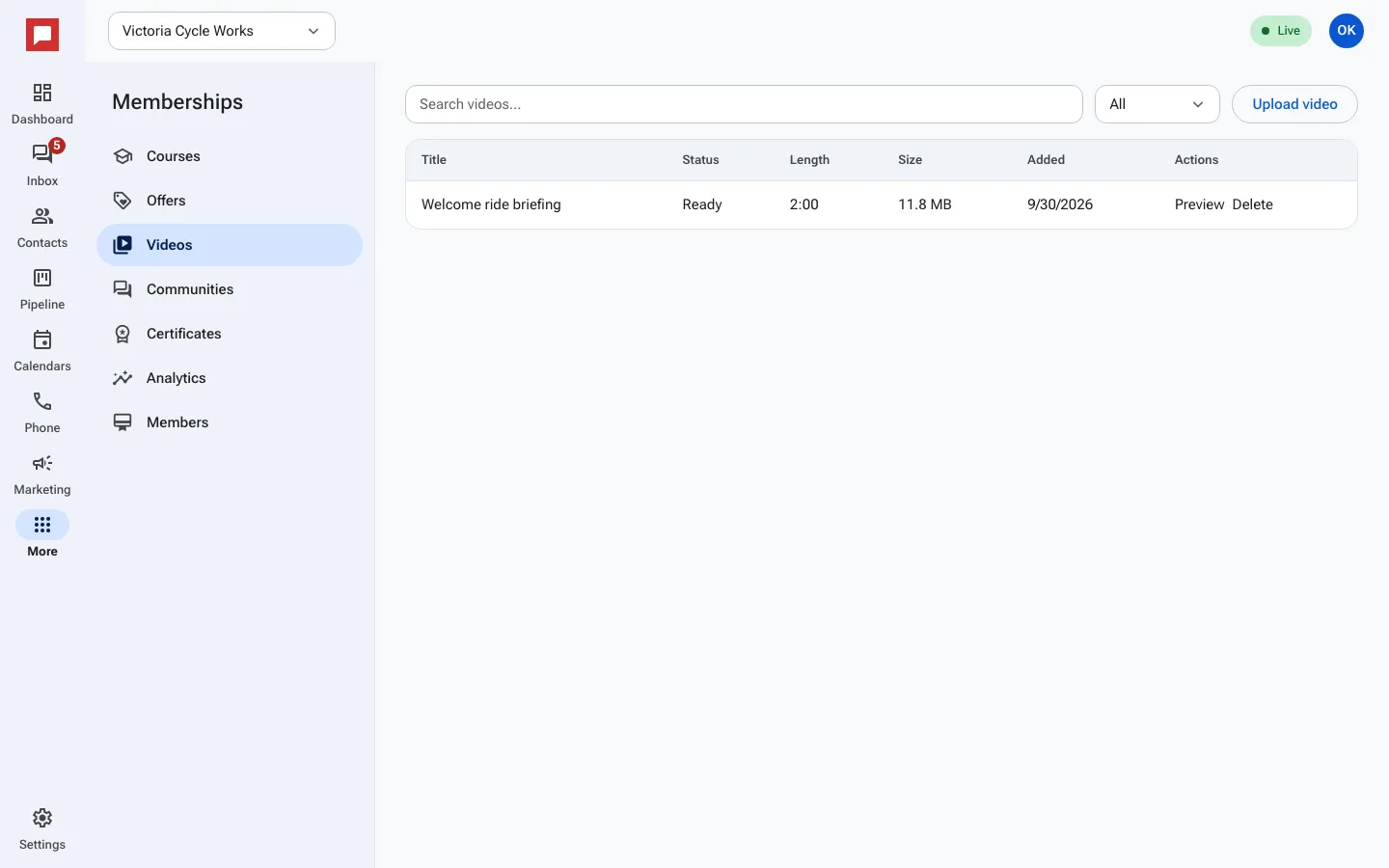
Your video library holds all the videos for your courses. You upload files once and attach them to lessons. The system processes the video and tracks member progress. This keeps your content organized and easy to reuse.
Steps
- Go to More in the left icon rail, then Memberships.
- Select Videos from the menu.
- Click Upload video to add a new file.
- Choose your Video file from your computer.
- Enter a Lesson title for the video.
- Add an Optional description if needed.
- Select the Category and Lesson to attach it to.
- Wait for the status to change to Ready.
- Use the video in your course lessons.
Good to know
- Videos are processed before they are ready to play.
- You can see the Length and Size of each video.
- Member progress is tracked for each video.
- You can preview a video before attaching it to a lesson.