
Check runs and logs
See who is in your workflow and what steps they have completed.
Runs show active contacts in your workflow. Logs detail every step taken. This helps you troubleshoot and optimize.
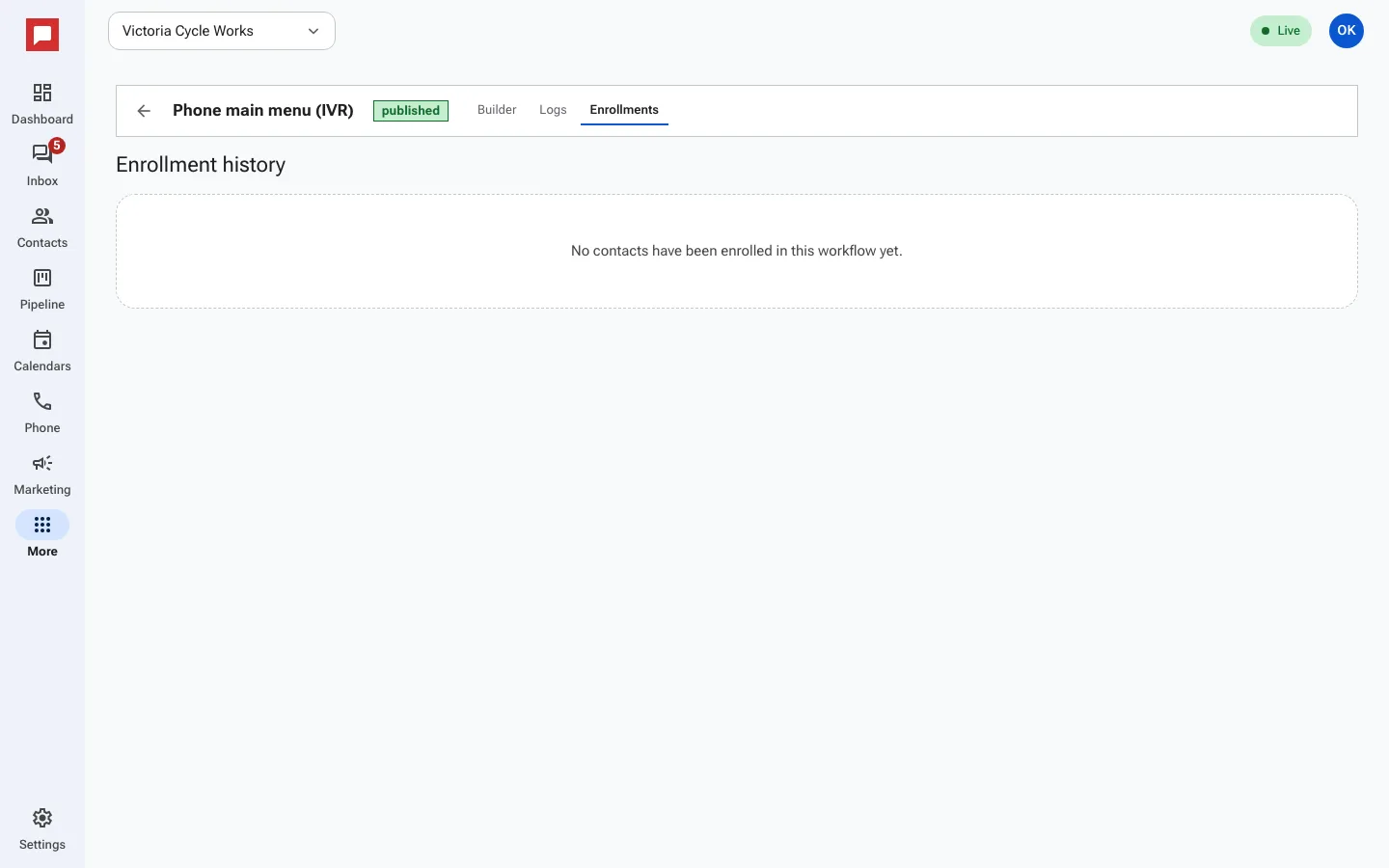
Steps
- Open your workflow.
- Click the Enrollments tab to see active contacts.
- Click the Logs tab to view step history.
- Select a specific run to see its Execution log.
- Check the status of each step, such as Sent or Failed.
- Use View log to see detailed step data.
- Remove a contact from the workflow if needed.
- Use Pause to stop new enrollments temporarily.
Good to know
- You can see which branch a contact took.
- Failed steps show an error message.
- A workflow step called remove from all workflows can take a contact out of every other workflow.