
Add and manage locations
Add multiple stores or offices and set their contact details and hours.
If you have more than one office or store, you can manage them all in one place. This keeps your contact info accurate for customers.
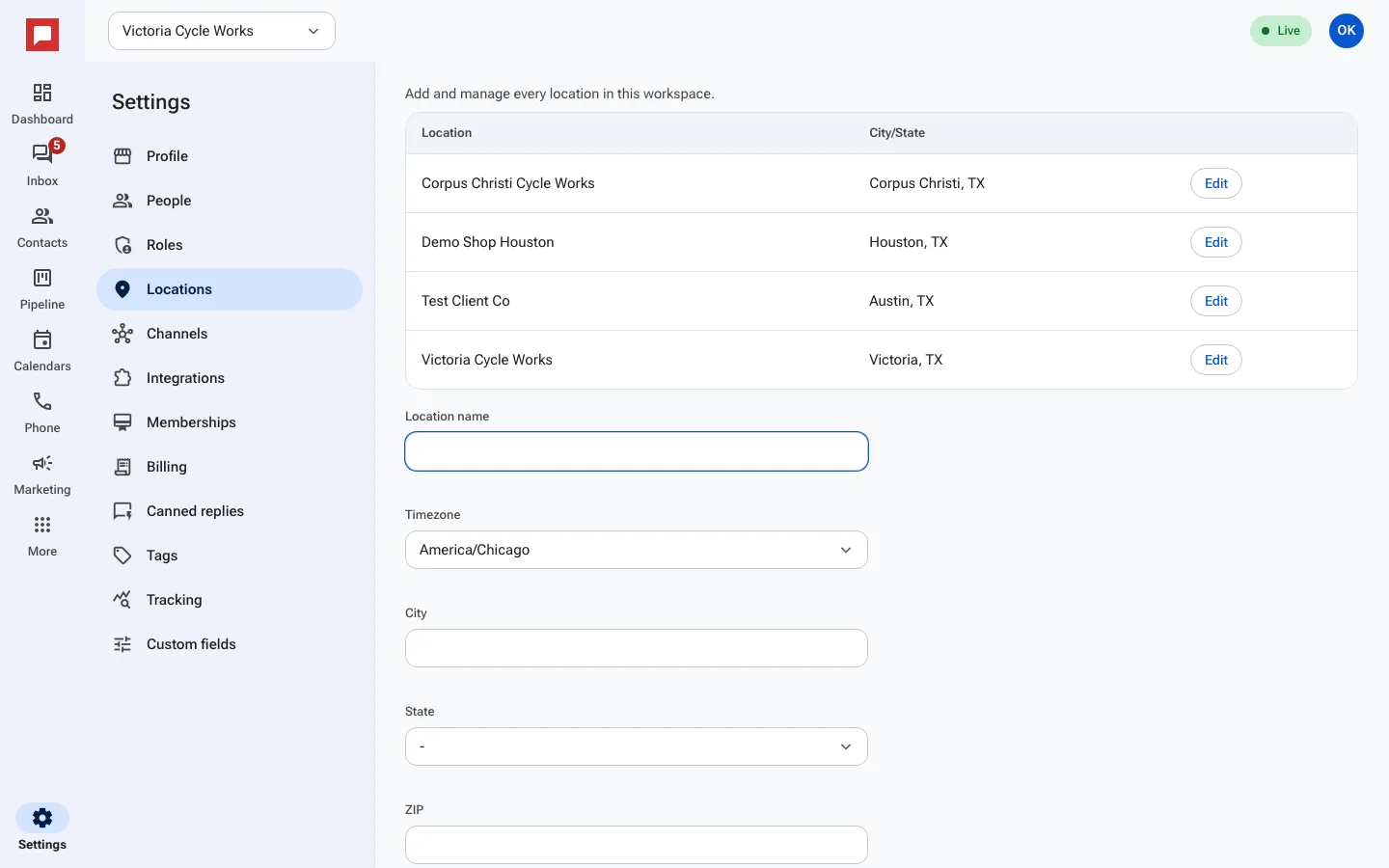
Steps
- Go to Settings at the bottom of the left icon rail.
- Select Locations.
- Click Add location to create a new entry.
- Enter the Location name, Address, City, State, and ZIP.
- Add the Phone number and Timezone.
- Include your Website if you have one.
- Set Quiet hours start and Quiet hours end for this location.
- You can add a Google review link if you want.
- Save your changes.
Good to know
- Each location can have its own quiet hours.
- If you leave quiet hours blank, it uses the workspace default.
- You can edit or delete existing locations at any time.
- Location details appear on your public profile.