
Roles and permissions
Set who can see and do what in your workspace using preset or custom roles.
Roles control what each person can access. This helps you keep sensitive data safe while letting your team do their jobs.
Steps
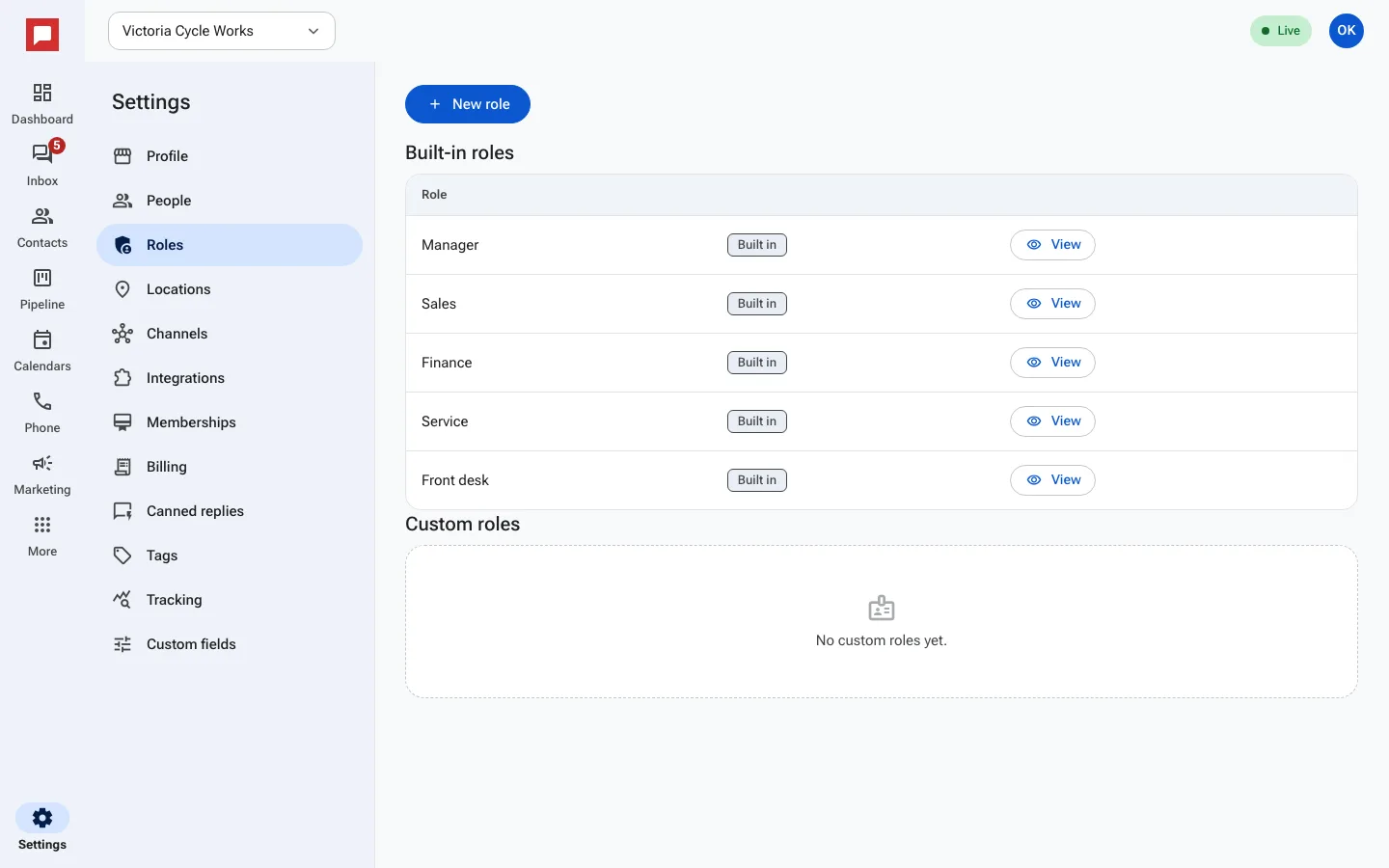
- Click Settings at the bottom of the left icon rail, then Roles.
- Under Built-in roles you see Manager, Sales, Finance, Service and Front desk. Click View to see what each one can do.
- To make your own, click New role, give it a name and switch on the permissions it needs.
- Your role shows up under Custom roles and in the role list when you invite or edit someone.
- To give a person a role, go to People and pick it in the Role column.
Good to know
- Built-in roles cannot be changed. Make a custom role when you need something in between.
- Every screen in HowdyBell checks a permission, so a role only sees the tools it is allowed to.
- For people who run several locations, set their access on the Workspace page.