
Workspace settings
Set your workspace name, default quiet hours, and access rules.
These settings apply to your whole workspace. They control basic info and access for everyone.
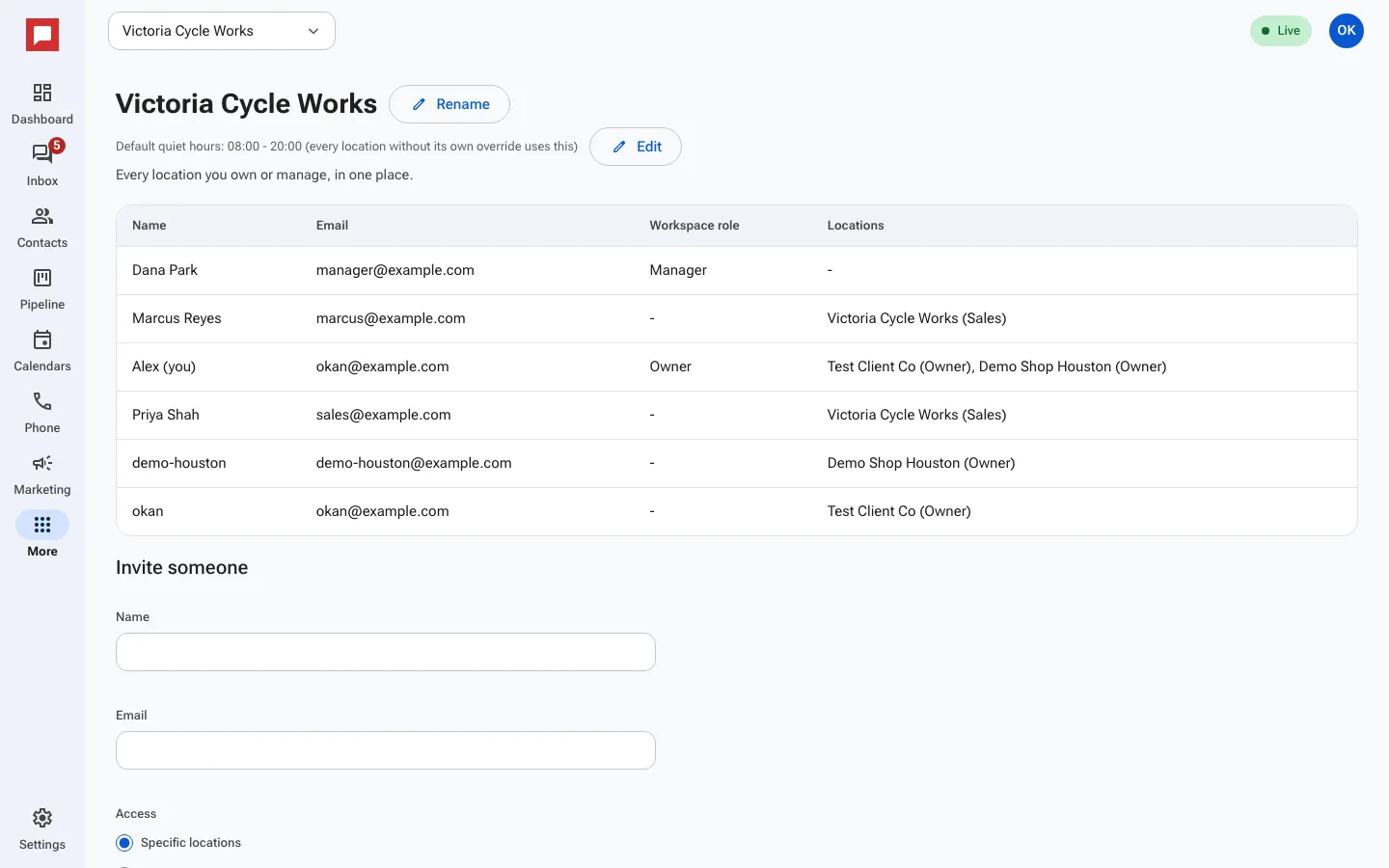
Steps
- Click More in the left icon rail, then Workspace.
- Click Rename to change the workspace name.
- Next to the default quiet hours, click Edit to set Default quiet hours start and Default quiet hours end. Every location without its own hours uses these.
- The table lists everyone in the workspace with their Workspace role and Locations.
- Under Invite someone, add a name and email, then set Access to Specific locations or Every location.
- For Every location, pick a workspace role: Manager (everything, every location, not billing) or Owner (everything, including billing).
Good to know
- Quiet hours stop workflow texts, emails and calls outside those hours.
- People with Specific locations access get a role per location, like Sales or Front desk.
- Only an Owner sees billing.