
Connect Stripe to get paid
Link your Stripe account so you can accept card and bank payments from customers.
You need a payment processor to accept money from customers. HowdyBell uses Stripe to handle card and bank transfers. You keep your own Stripe account, so you manage your funds and disputes directly.
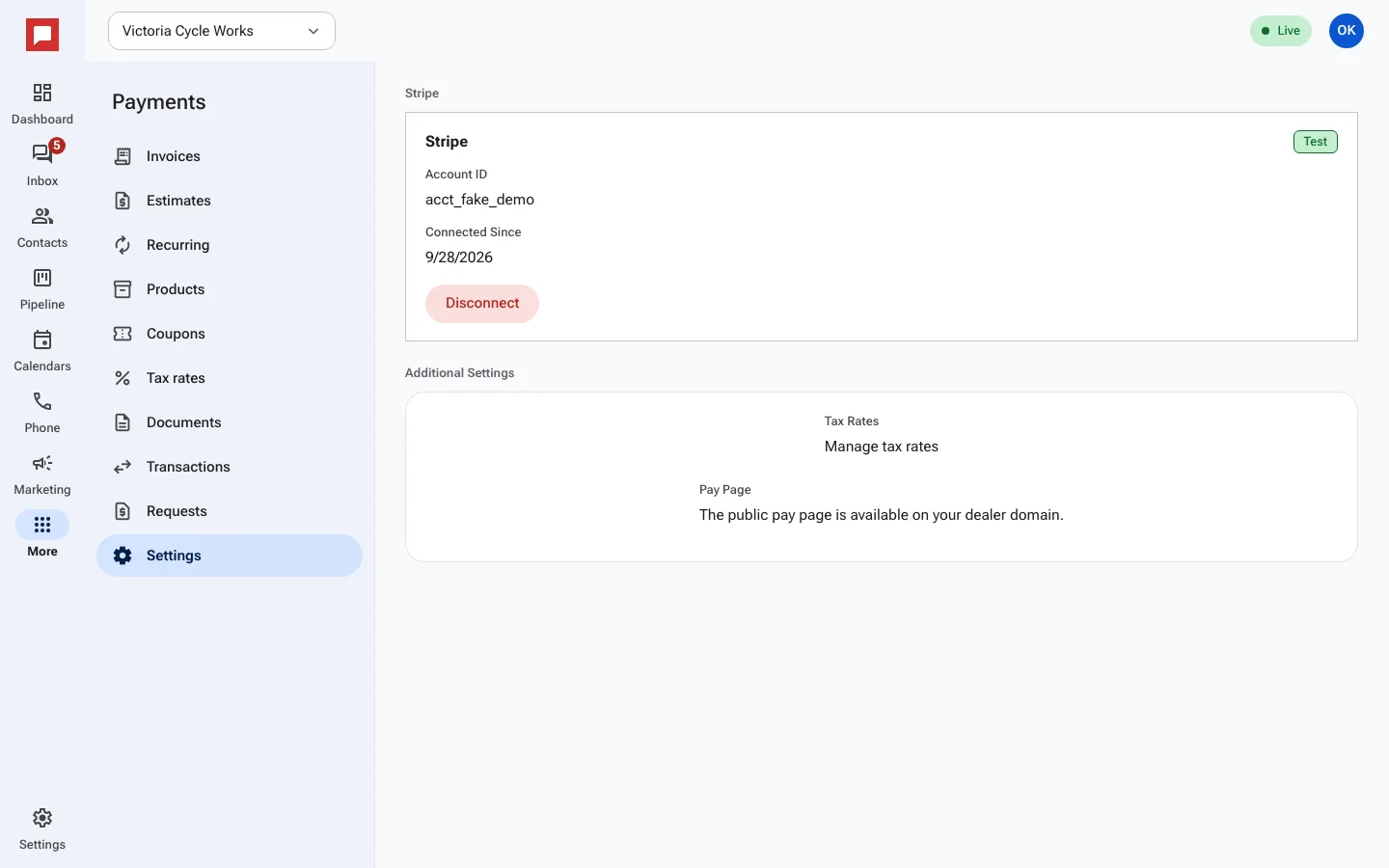
Steps
- Click More in the left icon rail, then Payments.
- Open the Settings tab.
- Look for the Stripe section. It will show Not connected.
- Click Connect Stripe.
- You will be redirected to Stripe. Log in to your existing Stripe account or create a new one.
- Approve the connection when Stripe asks for permission.
- You will return to HowdyBell. You should see Stripe connected successfully!
- Check the Account ID and Connected Since fields to confirm the link is active.
Good to know
- You need a role that can manage payments.
- Stripe handles the actual money transfer. HowdyBell only sends the payment request.
- Customers can pay by card or by bank transfer (ACH).
- If you disconnect Stripe, customers cannot pay online until you connect again.